Visual Line Following (OpenCV)
Hint
The operating environment and hardware/software configuration are as follows:
- OriginCar robot
- PC: Ubuntu (≥22.04) + ROS2 (≥humble)
- Line-following scenario: black path line with clear contrast against the background
Scenario Description
An example scenario for visual line following is shown below. This example uses a black guide line as the recognition target; adjust the camera angle downward as much as possible to avoid external interference.
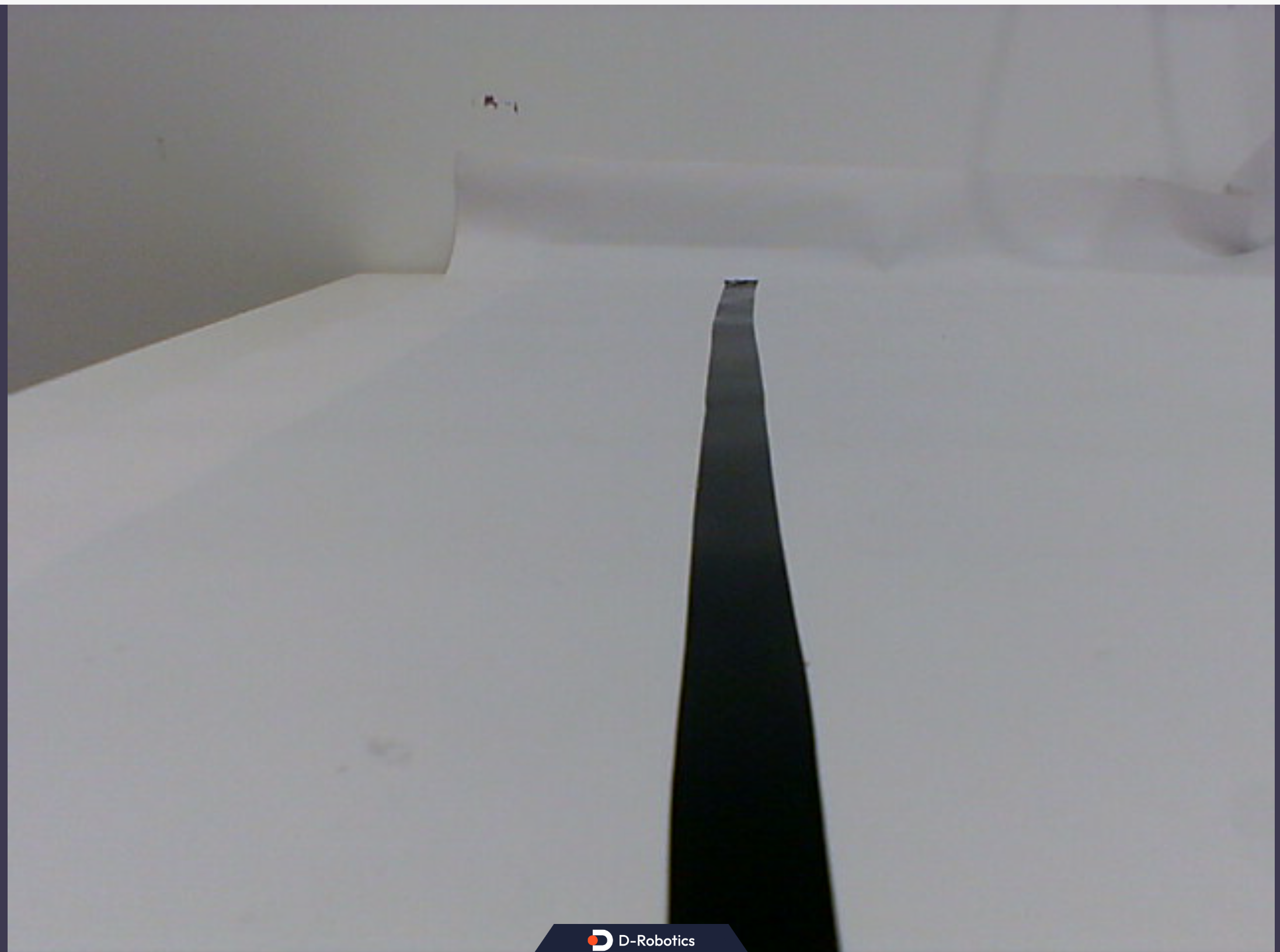
Attention
The visual line-following algorithm is strongly affected by lighting and the color of the field. If the car cannot recognize the line or spins in place, it is strongly recommended to debug the binarization threshold before running.
After making changes, be sure to rebuild in the root directory of the workspace.
Startup Steps
In this example, fully enabling the car's line-following function requires three terminals, used respectively to drive the chassis, start the camera, and run the line-following logic.
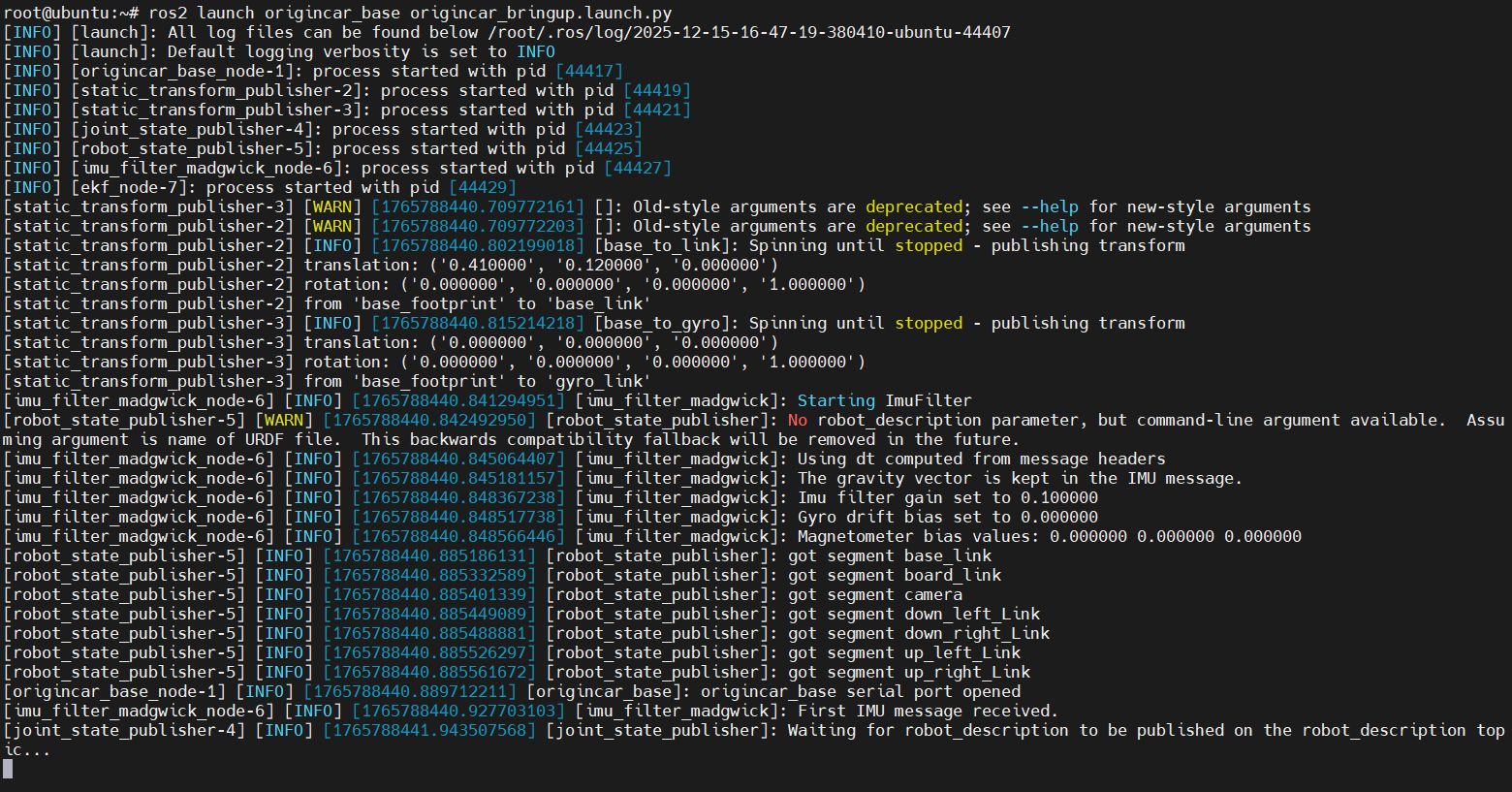
Step 1: Start the Base Driver
Connect to OriginCar over SSH and enter the following command in the first terminal to start the robot's low-level driver:
Step 2: Start the Camera Node
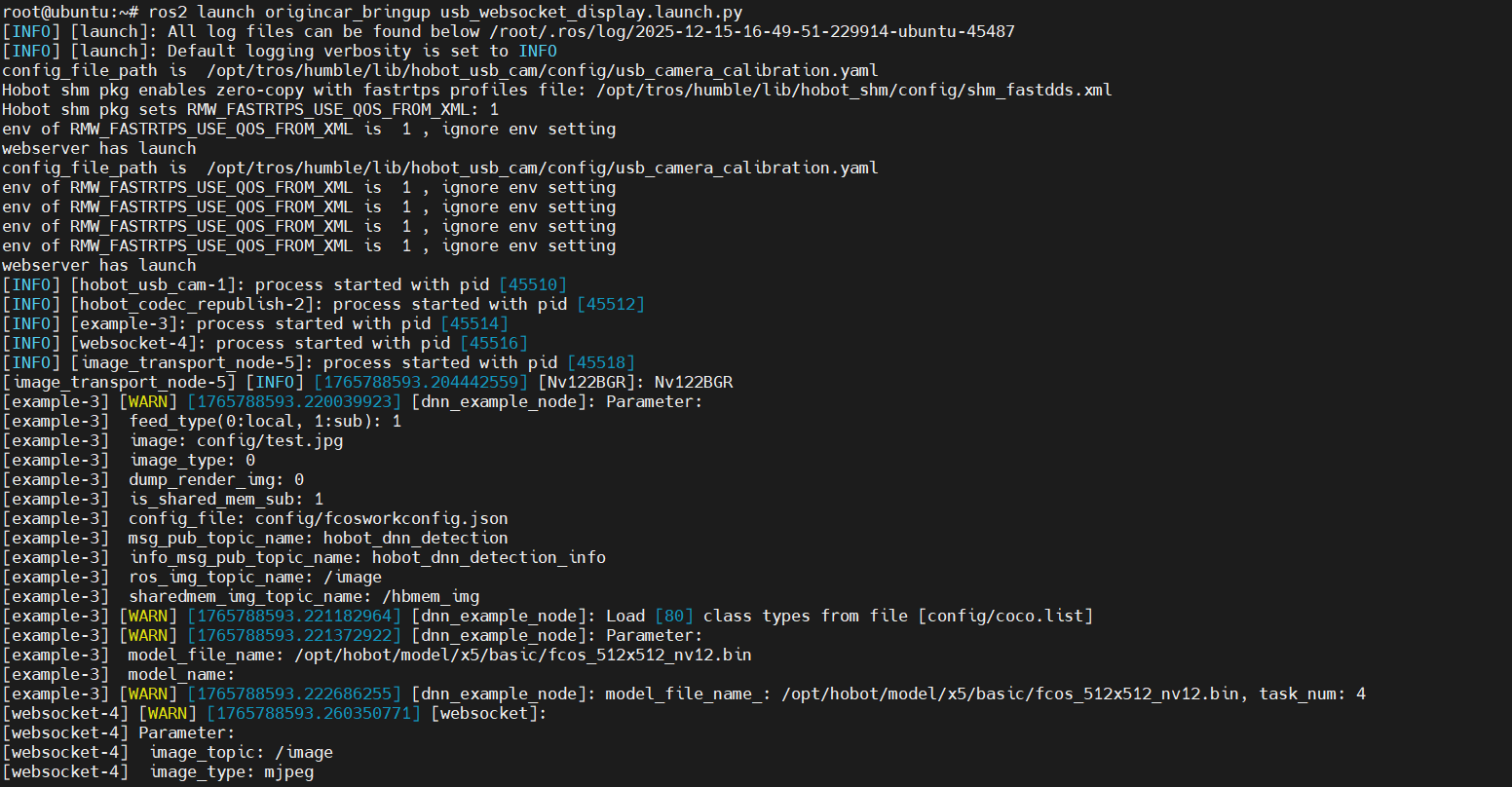
Open a second terminal in the SSH session and enter the following command to start the camera and publish the image topic:
Step 3: Start the Line-Following Package
Open a third terminal in the SSH session and start the OpenCV line-following node we compiled:
After a successful start, the terminal prints a message that line following has started. After a short wait, once the camera captures the line, the robot will begin automatic line-following motion.
After a successful start, wait a moment and the robot begins automatic line-following motion.
Step 4: Host Computer Visualization
To make it easier to see the robot's dynamic recognition results, start rqt_image_view on a PC on the same network:
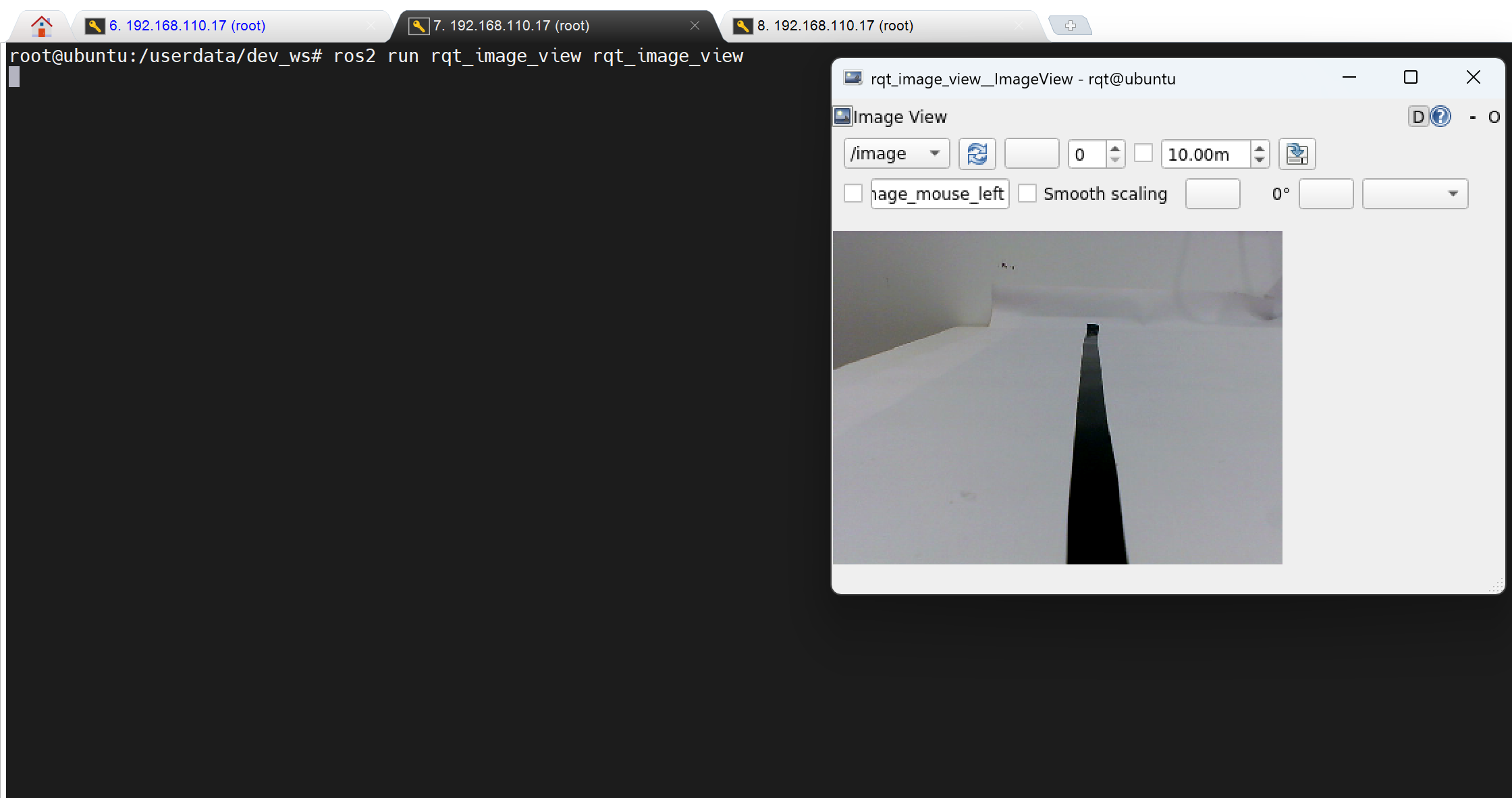
Subscribe to the /camera/image topic to see the dynamic recognition image results.
