Quick Start
After completing the network configuration for OriginCar, you are ready to start OriginCar!
Power-On Startup
(1) Turn on the main power switch; you can see the light strip on the car and the indicator LEDs on the board light up
Remote Connection
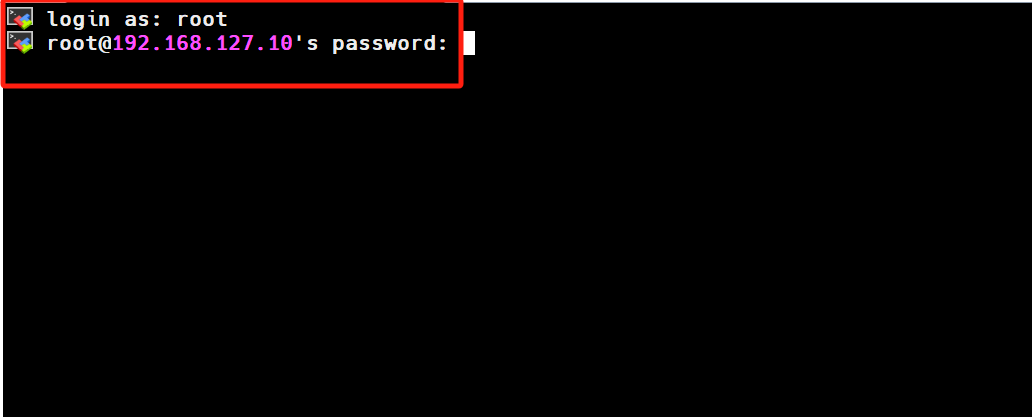
(1) Start MobaXterm and log in to OriginCar remotely
(2) Enter the username and password: root (username), root (password)
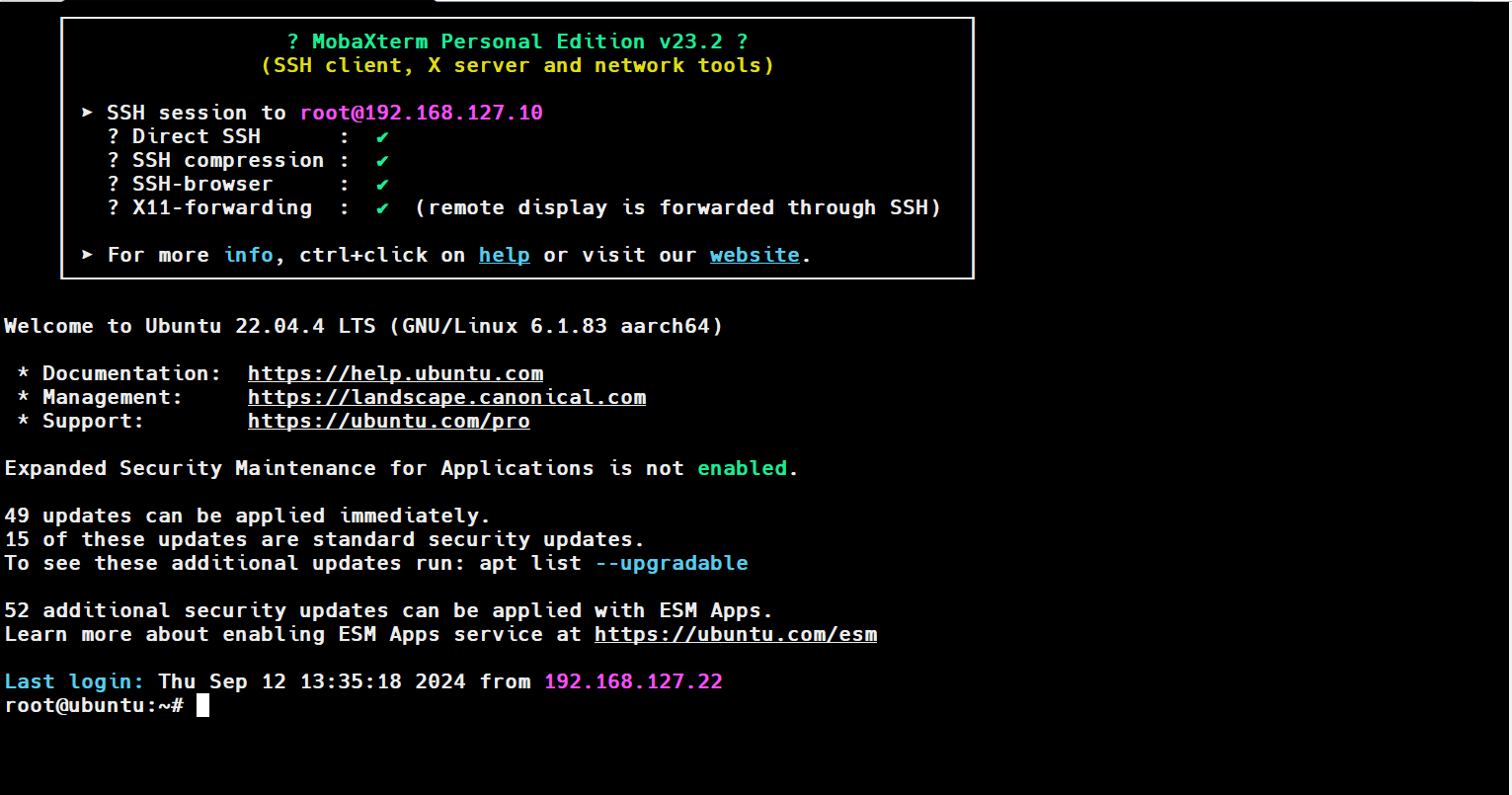
(3) Remote login successful

Example Run (Keyboard Control)
Let's first run the robot teleoperation example to become familiar with the robot's basic operations.
After the SSH connection is established, enter the following command to teleoperate OriginCar:
Open another terminal and enter the following command to start the keyboard control node.
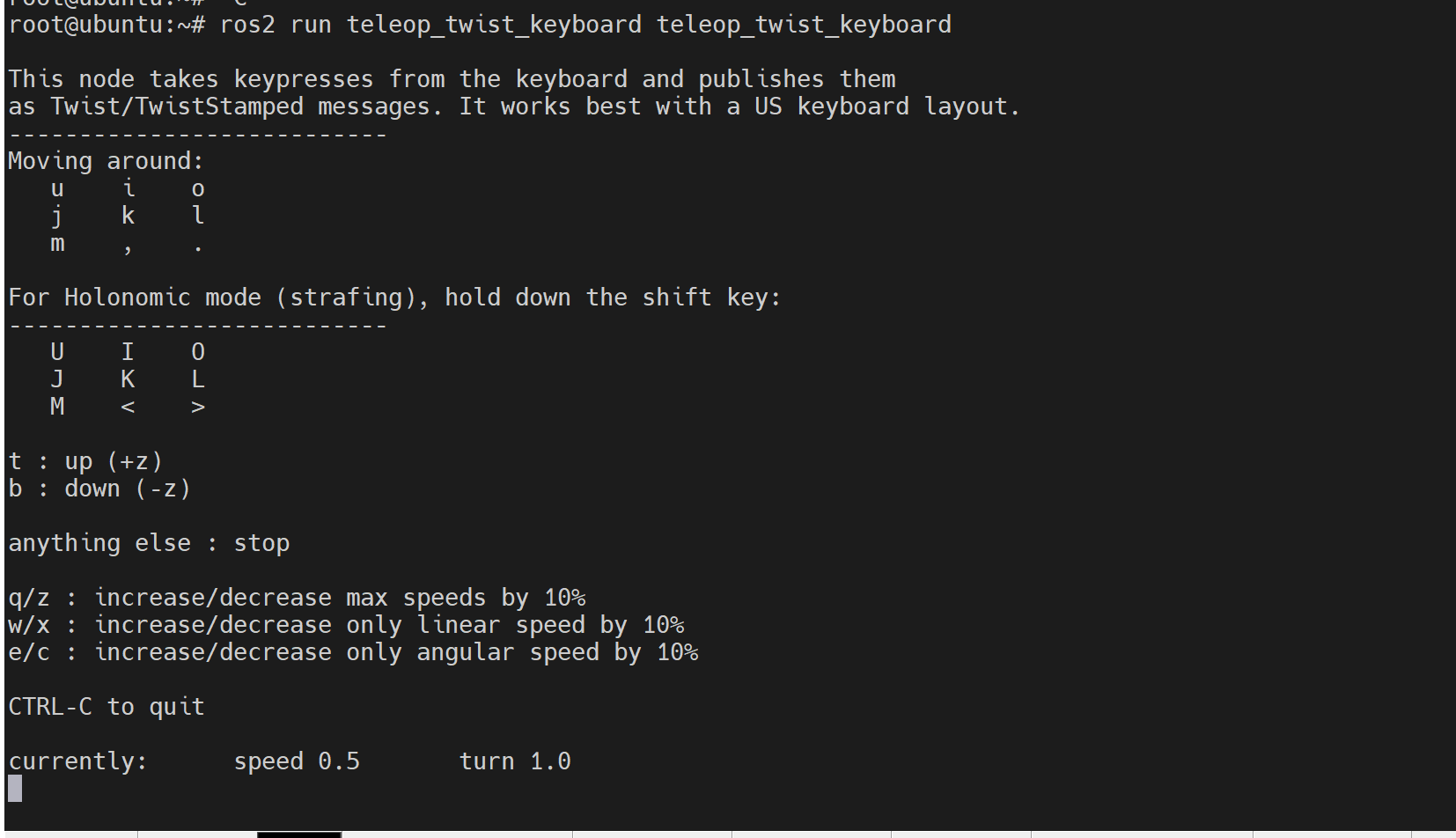
Note: Because OriginCar uses Ackermann steering, it cannot move left or right without linear velocity.
Power-Off Shutdown
If you need to shut down the robot, enter the following command in the terminal to shut down the software system:
Wait about 5 seconds, then turn off the power switch on the robot controller to complete the robot shutdown.
Attention
Turning off the power switch directly also powers down the robot, but it may damage files that the software system is currently reading or writing, causing unexpected system problems.
At this point, you have gotten started with OriginCar. Refer to "Basic Usage" and "Application Features" to continue developing in depth.
