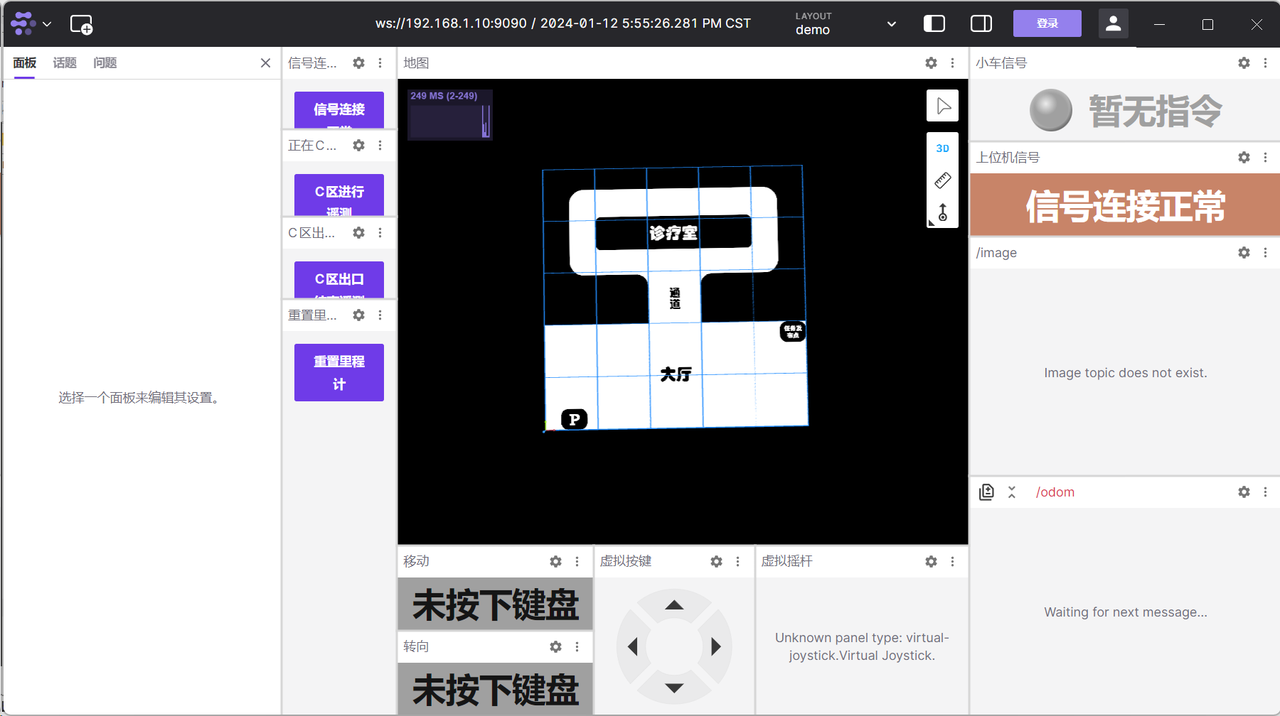
Host Computer
OriginCar Pro comes with a host computer digital system for smart car competitions. It is used to monitor the information of each sensor on OriginCar Pro and to communicate with OriginCar Pro through topics and services. Users can download the related contents from Baidu Netdisk, including the digital environment usage documentation and the startup files.
Click to download the host computer project files
Software Download
The host computer digital system is developed based on the open-source project coStudio. Users need to download this software before they can use the subsequent features. 1. You can go to the official coStudio website to download the latest version, or download the version used by the author from Baidu Netdisk; 2. After the download is complete, install it by following the installation prompts;
Digital Environment Directory Overview
├─CoStudio-v24.47.1-win.exe        #CoStudio installer
│
├─config
│      demo.json                    #CoStudio page layout
│
├─dist
│      Bridge-Client-win-v0.1.4.7z   #Packaged application
│
└─src
        bridge_client.py            #Host computer startup program for Windows
        bridge_client.sh            #Host computer startup program for Ubuntu
        bridge_client.spec          #Packaging script
        map.png                     #Map file; the program reads the image named map.png and publishes it as the map
        requirements.txt            #Dependencies required to run the program
Environment Configuration
In addition to the software itself, this example also provides a corresponding script to assist with use. You need to install Python libraries such as keyboard, roslibpy, opencv-python, and pyyaml on the PC. Follow the steps below to install them.
-
In a terminal, go to the src directory
-
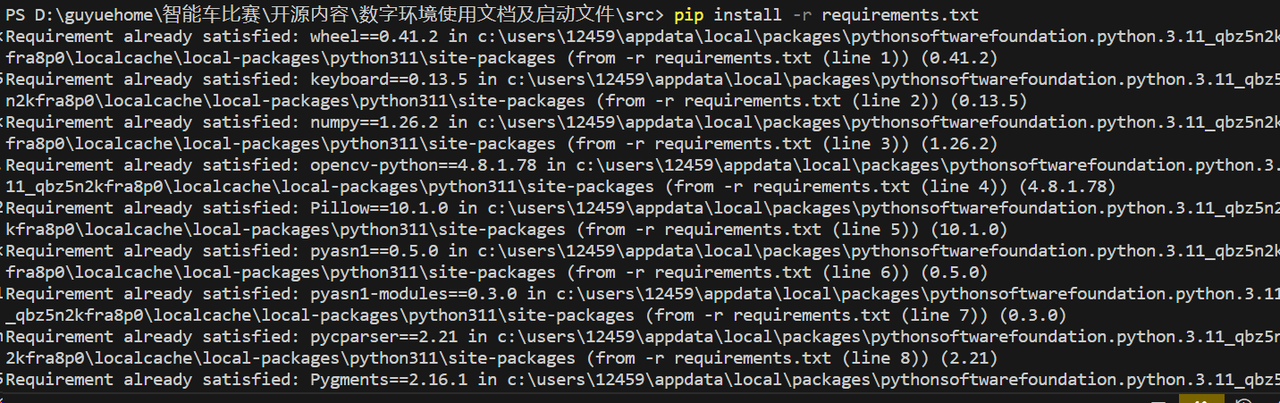
Enter the command pip install -r requirements.txt
Host Computer Usage
A packaged binary version is provided for Windows; you can also package it yourself according to the packaging script.
Windows
Run from the command line
-
Make sure that the
map.pngimage is in the same directory asbridge_client.py -
In a terminal, go to the
srcdirectory -
Enter the command
python bridge_client.py; arguments (IP argument, port argument) can be passed, for example: -
Pass the IP argument:
python bridge_client.py 192.168.1.10 -
Pass the IP and port arguments:
python bridge_client.py 192.168.1.10 8080
Use the binary version
- Make sure that the
map.pngimage is in the same directory asbridge_client.exe - Right-click
bridge_client.exeto add a desktop shortcut - Double-click the shortcut to run it
Note: In this case, IP configuration and so on are all configured in
config.yamlin the same directory asbridge_client.exe
Package the executable
- In a terminal, go to the file directory
- Enter the command
pyinstaller src/bridge_client.spec
Ubuntu
No packaged binary version is provided for Ubuntu; you can package it yourself according to the packaging script.
Run from the command line
- Make sure that the
map.pngimage is in the same directory asbridge_client.py - In a terminal, go to the
srcdirectory - Enter the command
./bridge_client.sh - Enter the user password
Interface Description
After completing the steps above, the following screen appears
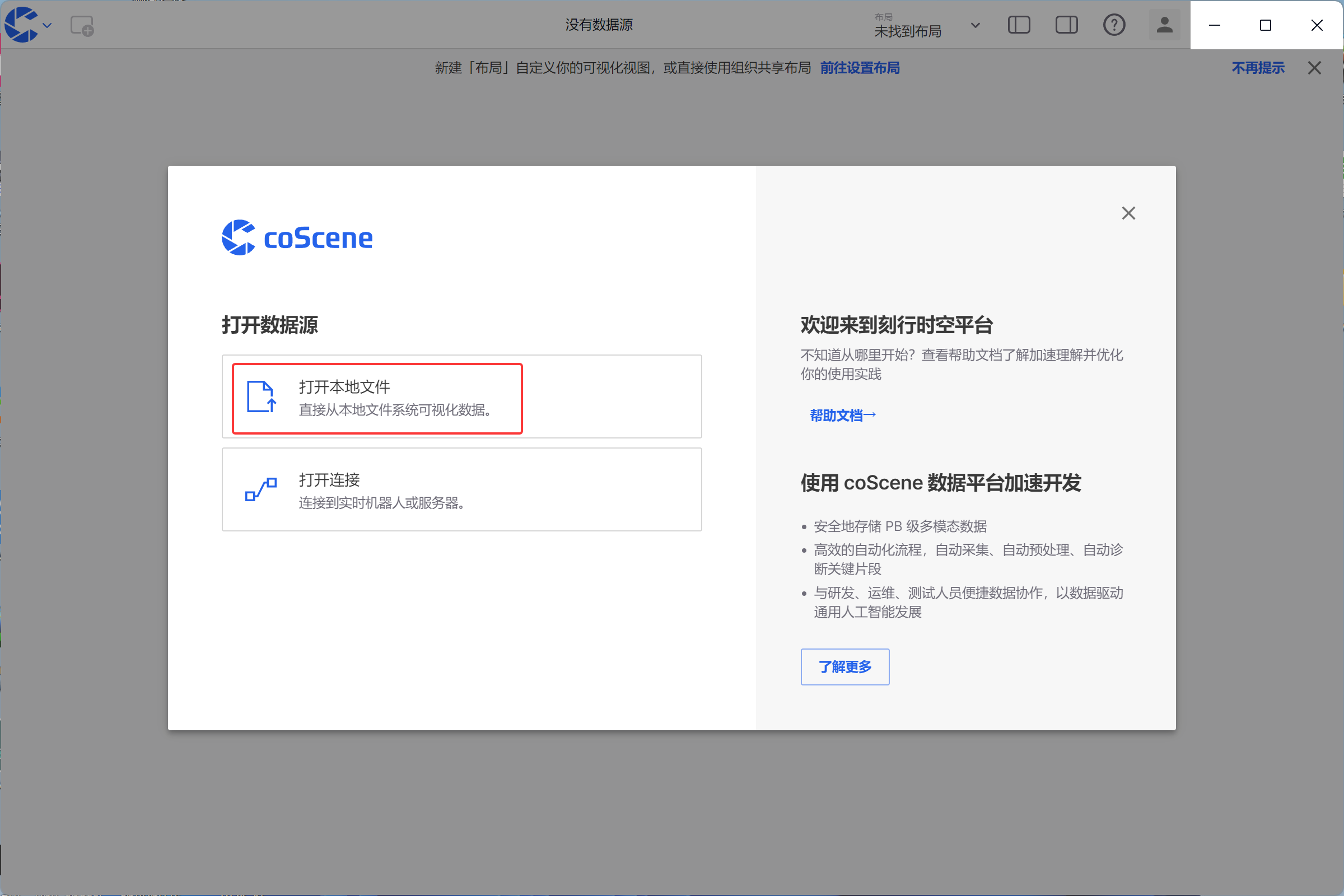
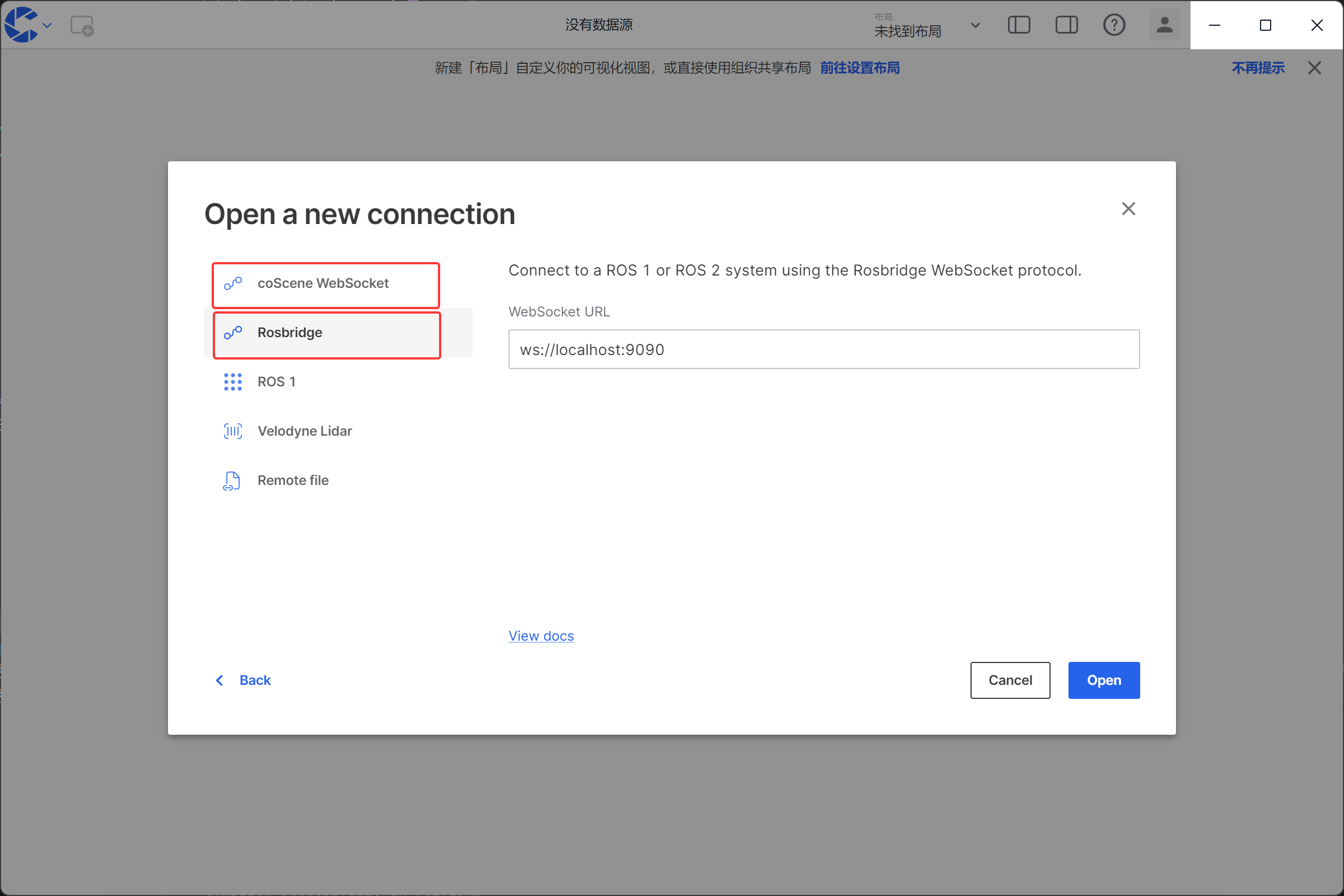
Click to open a connection, select cobridge or rosbridge, enter the ip and port, and click Open
Click the Import Layout option in the upper-left corner; the layout file is in the /config directory
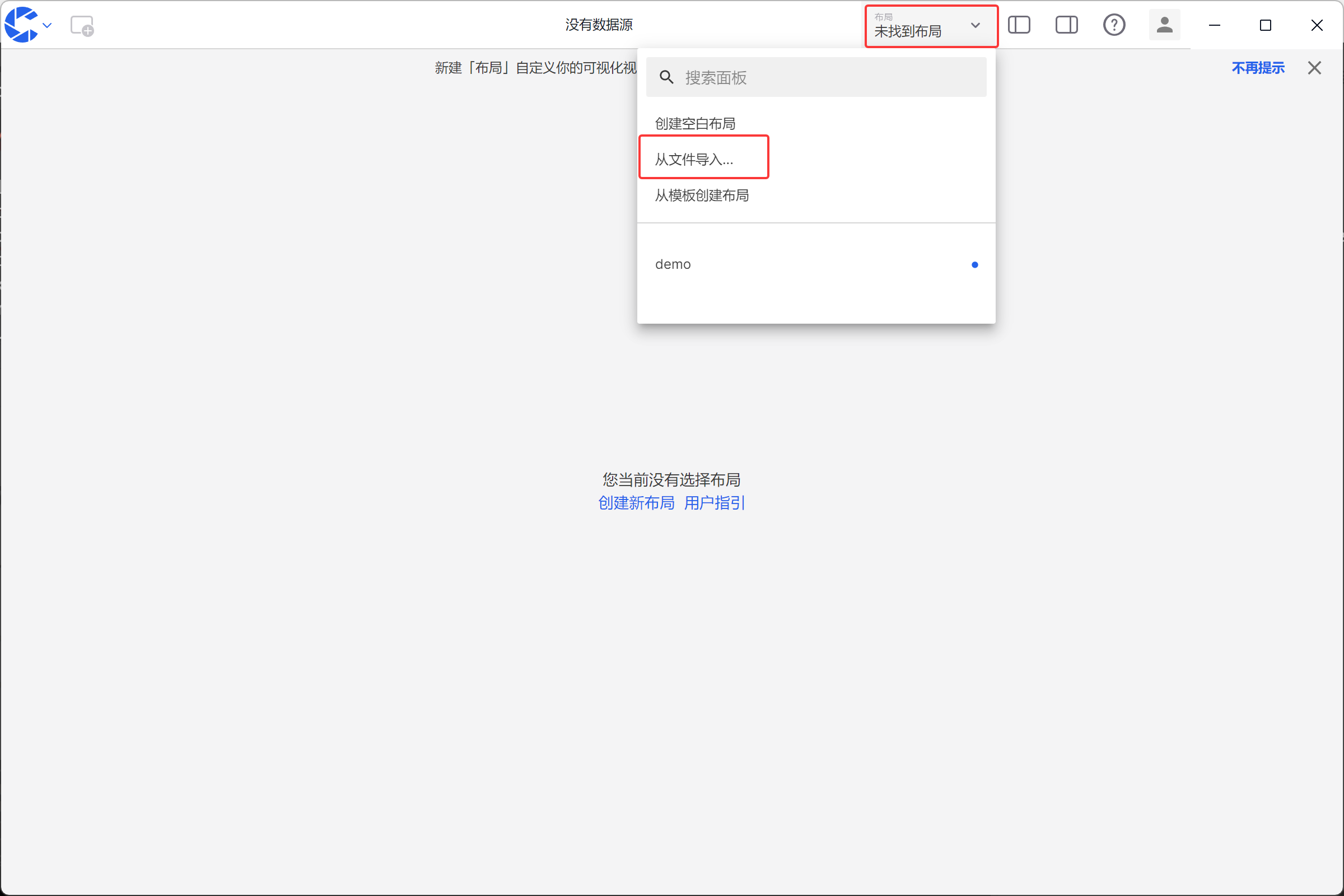
Host Computer Integration with OriginCar Pro
Install rosbridge on OriginCar Pro
#Install rosbridge
$ sudo apt install ros-humble-rosbridge-suite
#Start the rosbridge port
$ ros2 launch rosbridge_server rosbridge_websocket_launch.xml

Connect to coStudio
This example uses the command-line form; you can run python bridge_client.py 192.168.1.10 or modify the Host parameter in bridge_client.py
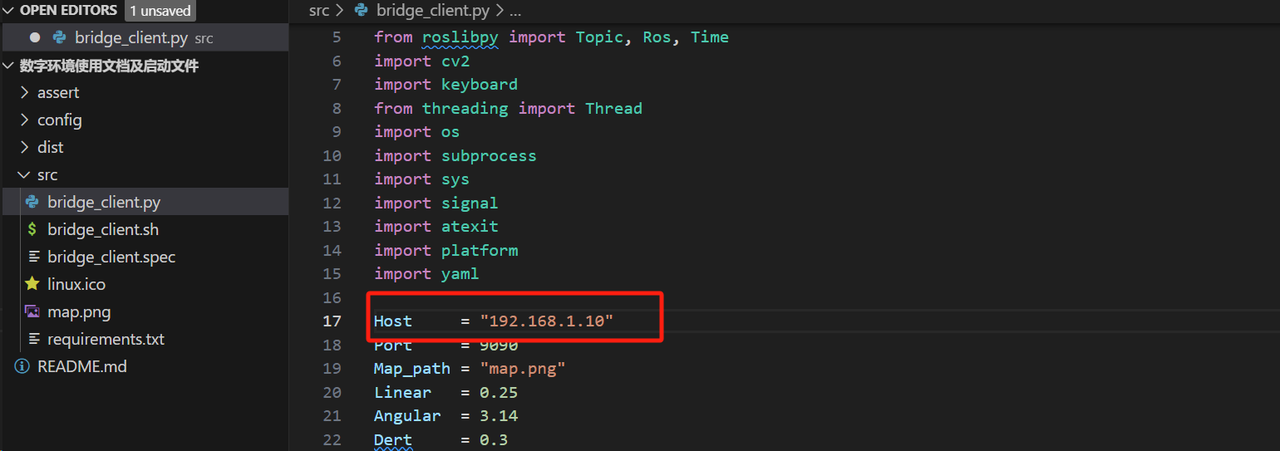
After connecting, the following screen appears