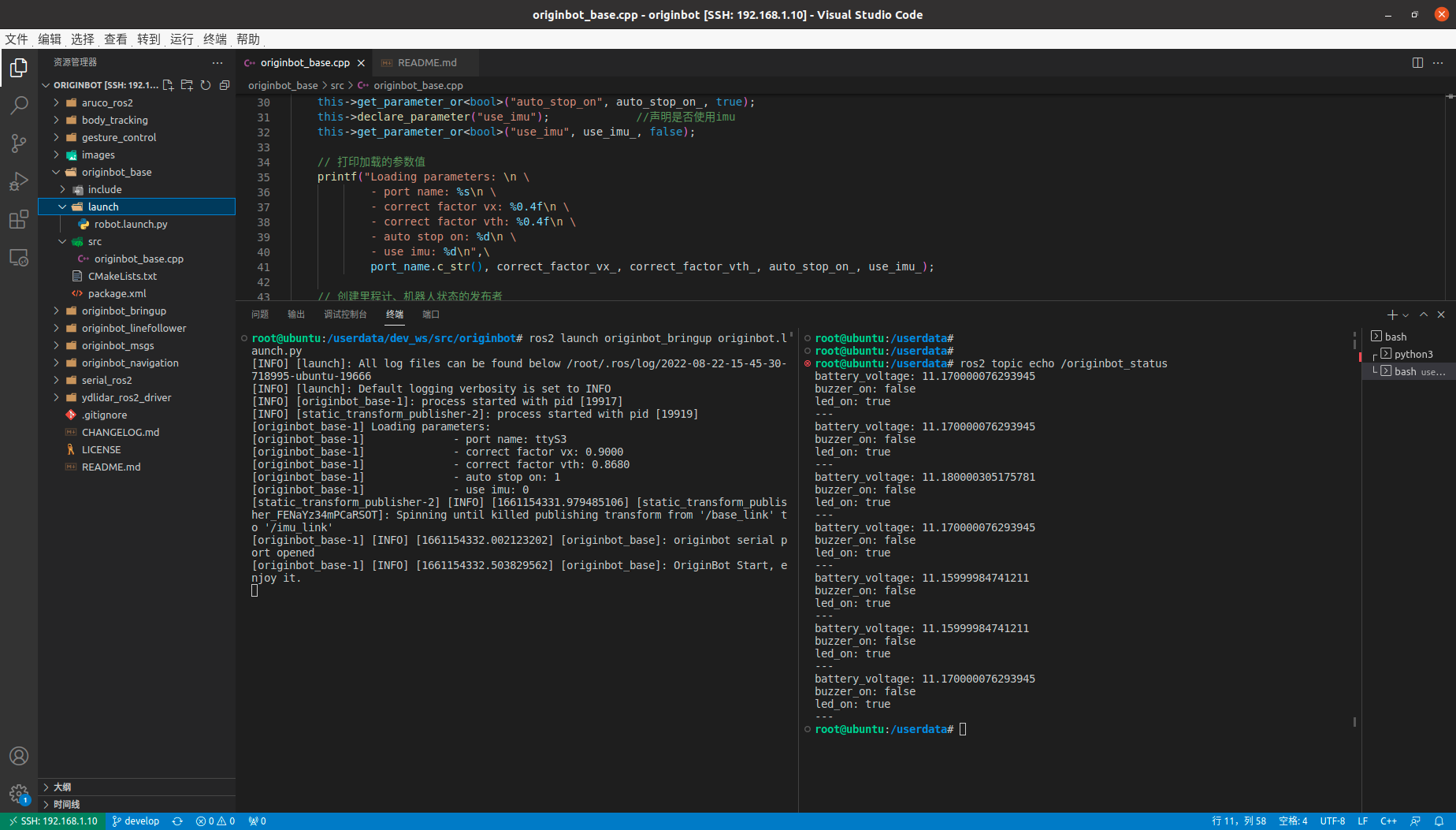
Set Up the Development Environment
OriginCar supports remote development over an SSH login. If you are not used to working from a remote command line, you can also set up a visual development environment on a PC. Here we describe how to use VSCode for remote development.
Install VSCode
VSCode provides official installers for a variety of operating systems. Download the one that matches the operating system you use.
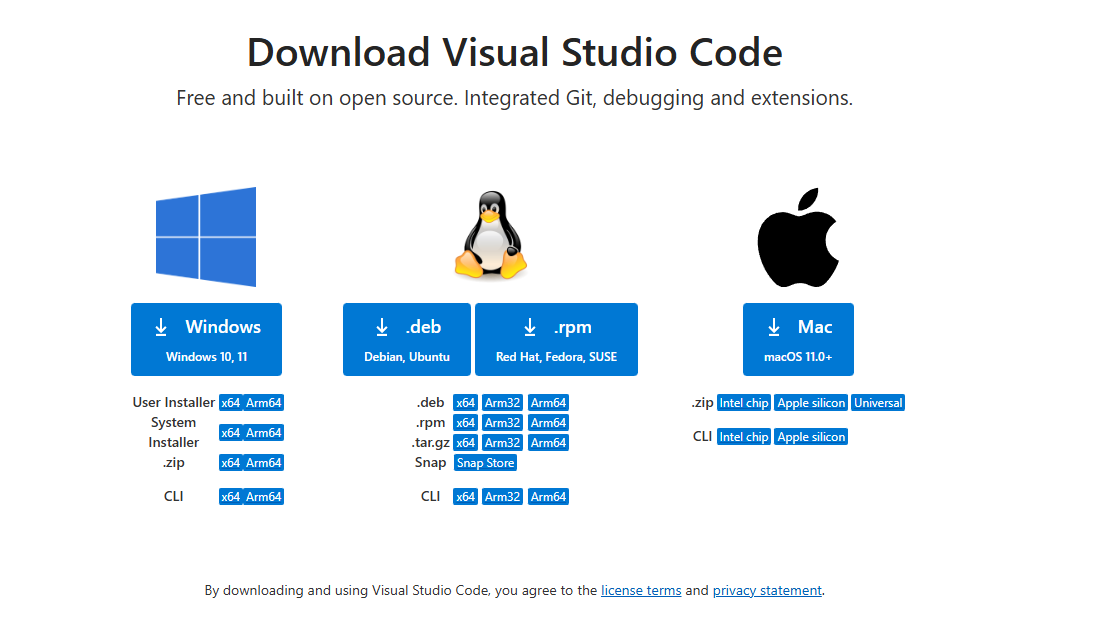
After the download is complete, double-click the installer and follow the on-screen steps to finish the installation.
Hint
If you are working in an Ubuntu environment, download the .deb installer. After the download is complete, use the following command to install it:
$ sudo dpkg -i filename.deb
Install the SSH Extension
Open the installed VSCode, select "Extensions" on the right side, enter "ssh" in the search bar to search, find the "Remote - SSH" extension, and then click Install.
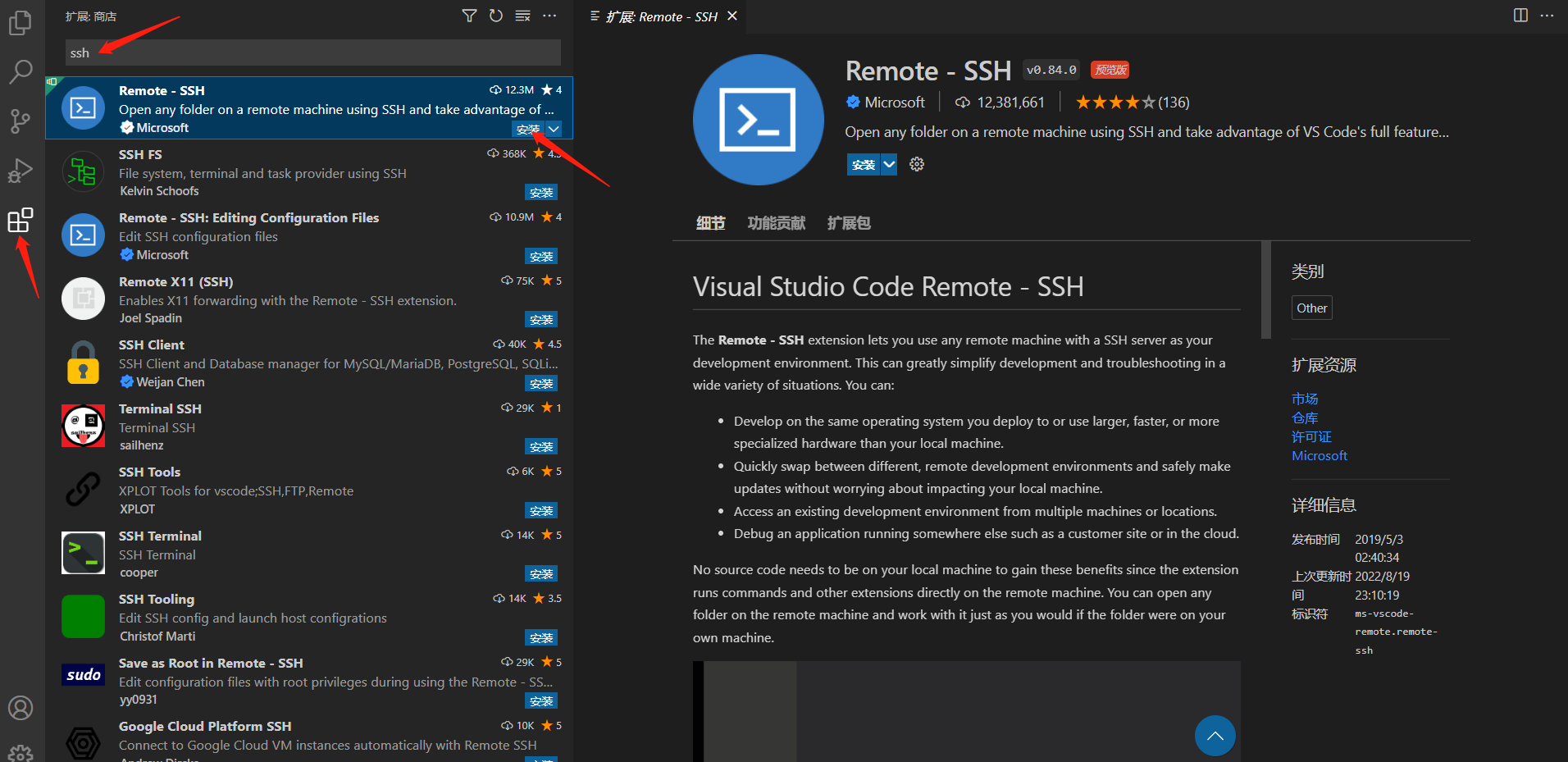
After it is installed, a "Remote Explorer" appears on the left side of VSCode.
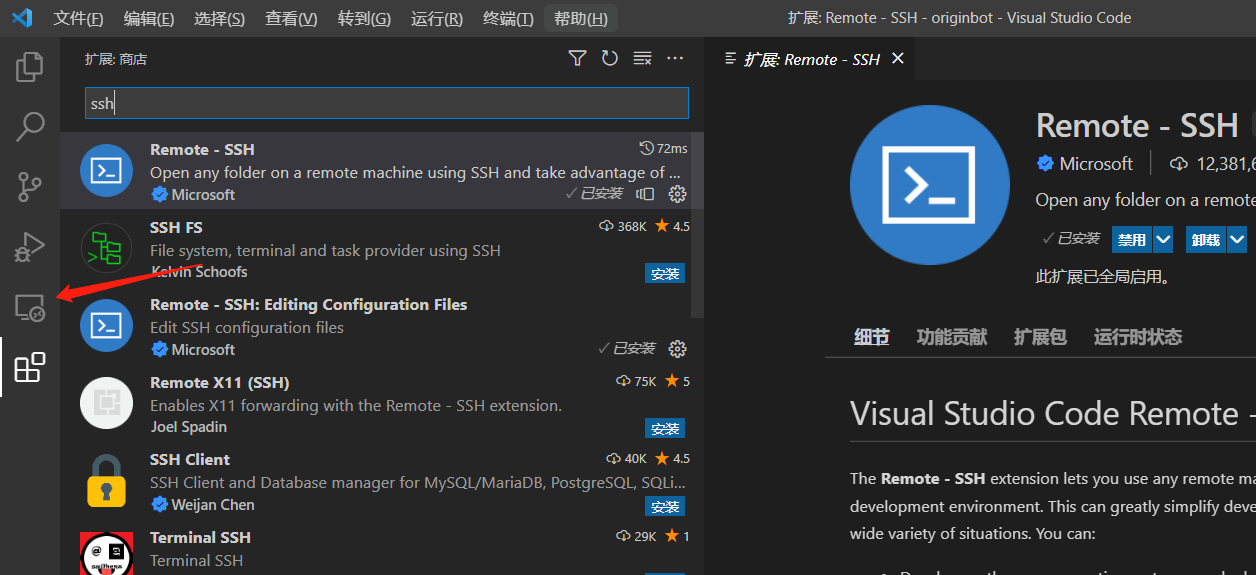
Configure the Remote Connection
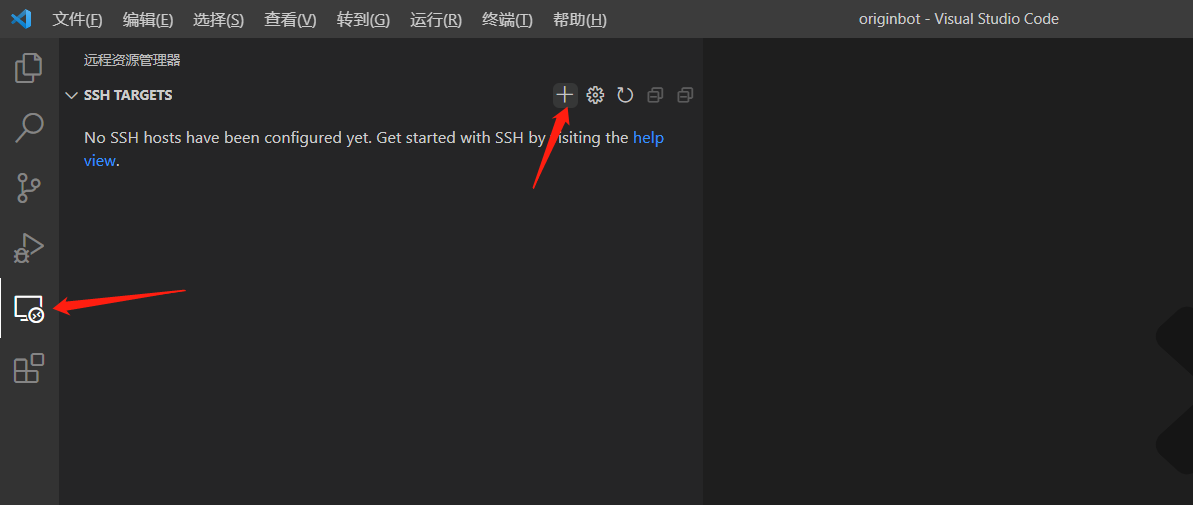
Click the newly appeared "Remote Explorer" on the left side of VSCode, then click the "+" add button.
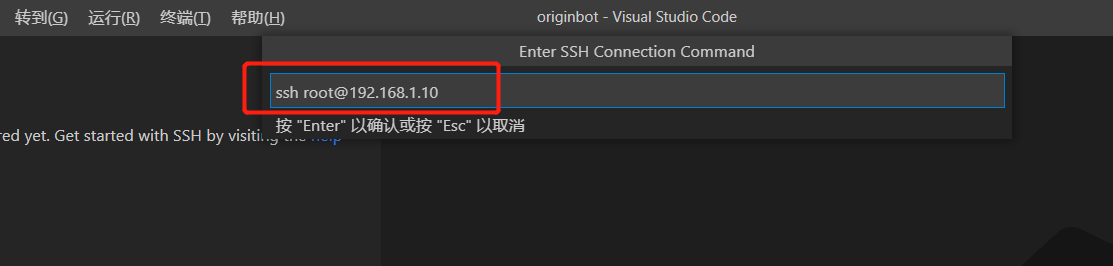
In the prompt box that pops up, enter the full ssh command and press Enter.
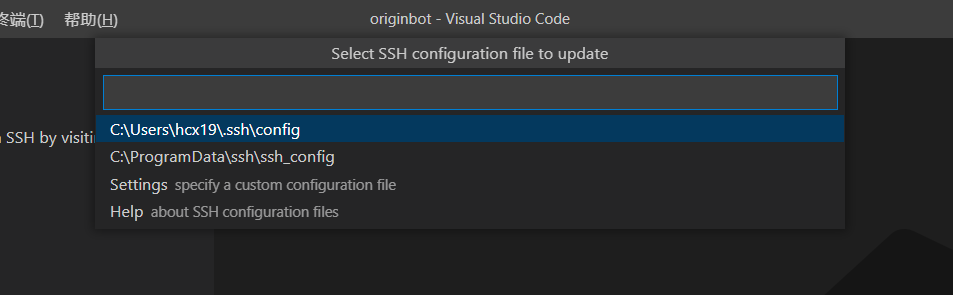
Then select the first item, the default configuration file, to save the ssh command information you just entered.
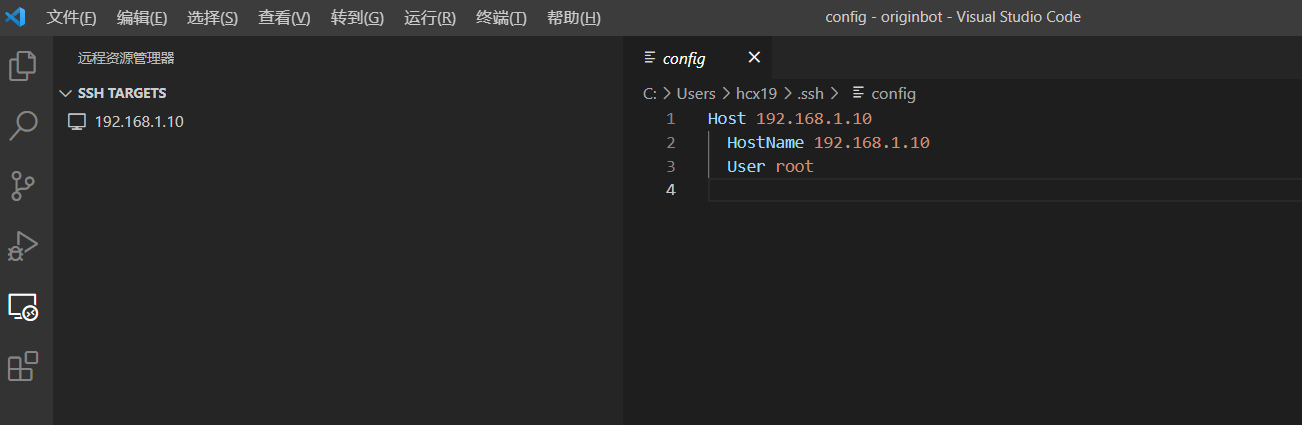
After it is saved successfully, you can also open that configuration file as prompted, so that the next time you log in remotely you do not need to enter the information again. In addition, the IP address of the remote target is added to the list on the left.
Connect to the Remote Server
Right-click the IP address of the remote server, then select Open in Current Window.
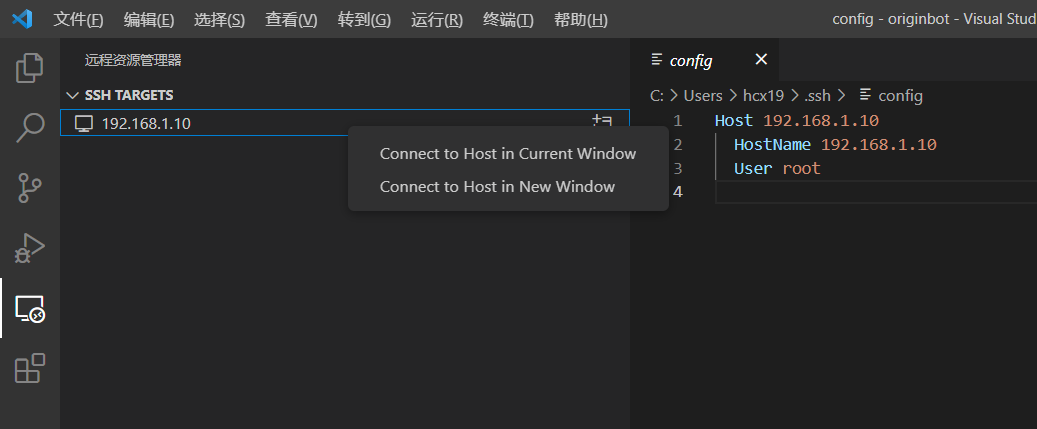
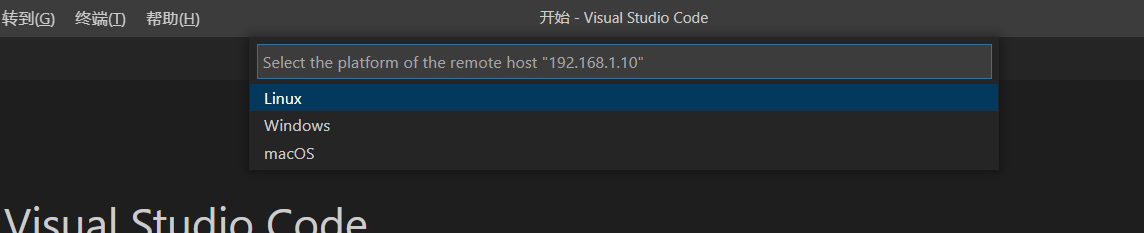
A new window opens shortly. Next, select the type of the target server; we choose Linux.
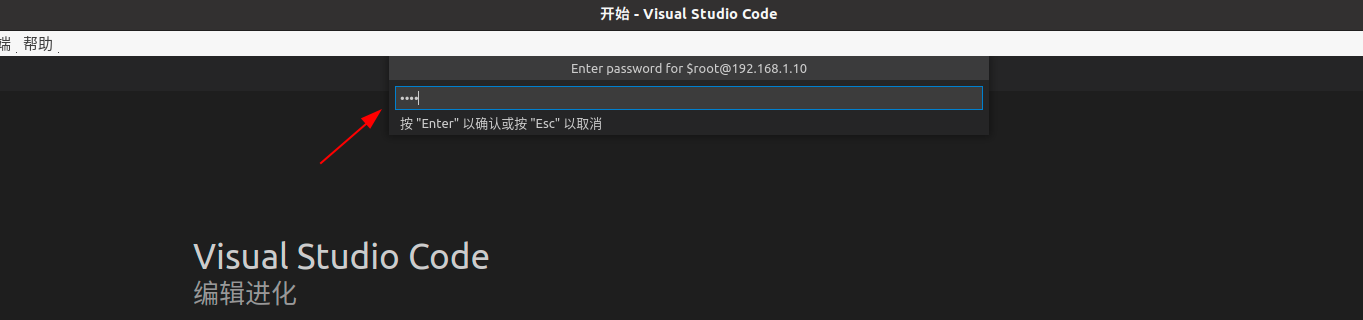
A small window soon pops up asking you to enter the password; just enter root.
After a moment you are logged in successfully; then select Open Folder.
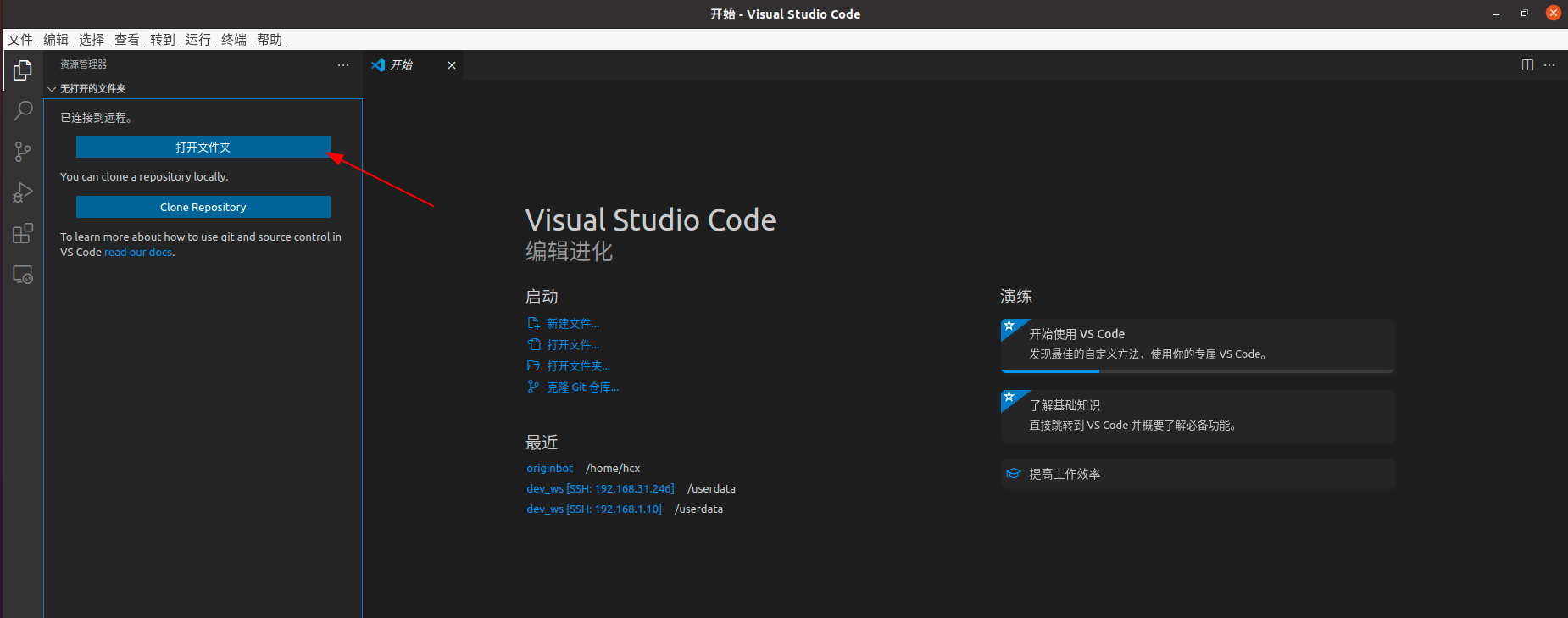
Then we select the workspace of OriginCar. userdata is a little further down; scroll the mouse wheel to see it.
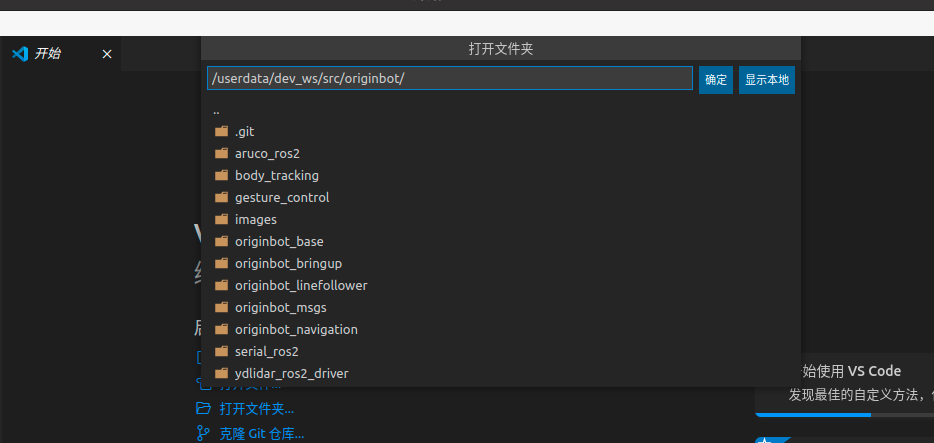
This way, we can access the code on OriginCar remotely, and we can modify it at any time; the changes are synchronized to the robot in real time. In addition, in the VSCode window that is successfully connected, we can start multiple terminals, which makes it easier to enter various commands that run on OriginCar.