Network Configuration and Remote Development
OriginCar ships without an operating system installed. You can install one in the following way:
First download the device image, then take the SD card included in the package, insert the SD card into a card reader, and follow the steps to flash it. After flashing is complete, insert the card into the main controller board of the device.
Download the OriginCar SD Card Image
Download the robot's SD card image from the following table, and extract the downloaded file.
| Version | Compatible Model | Download Link | Included Software Versions |
|---|---|---|---|
| v1.0.0 | OriginCar | OriginCar_sd_image_v1.0.0 | ROS: foxy TogetheROS: 2.0.2 |
| v1.0.0 | OriginCar Pro | OriginCar_Pro_sd_image_v1.0.0 | ROS: humble TogetheROS: 3.2.3 |
Flash the SD Card Image
(1) Insert the SD card into the computer using a card reader. An SD card capacity of ≥16 GB is recommended;
(2) Start the image flashing software (you can refer to Common Software to download it);
(3) Confirm the SD card device number and select the system image to flash;
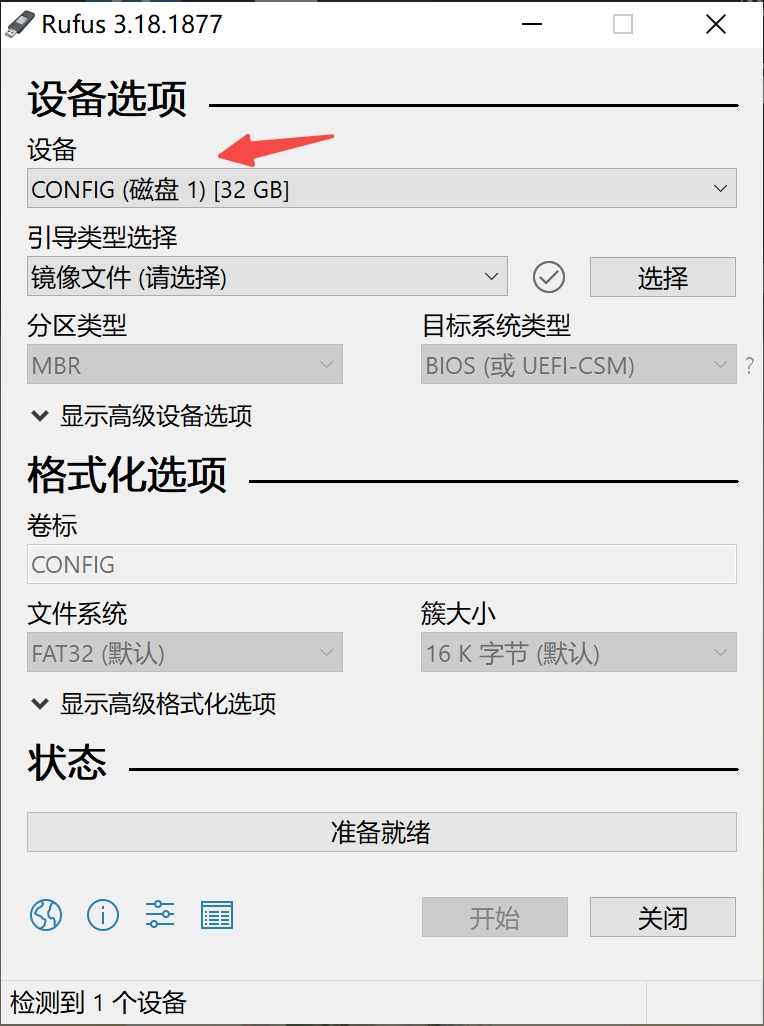
(4) Click "Start", then click "Confirm" to begin flashing the image;
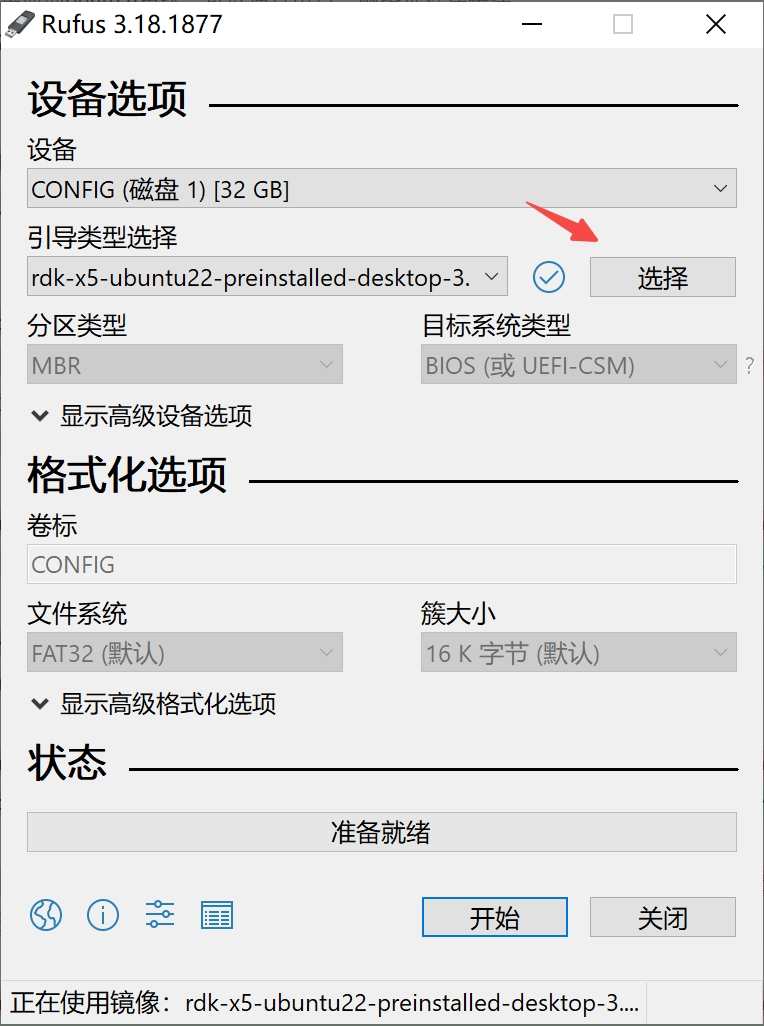
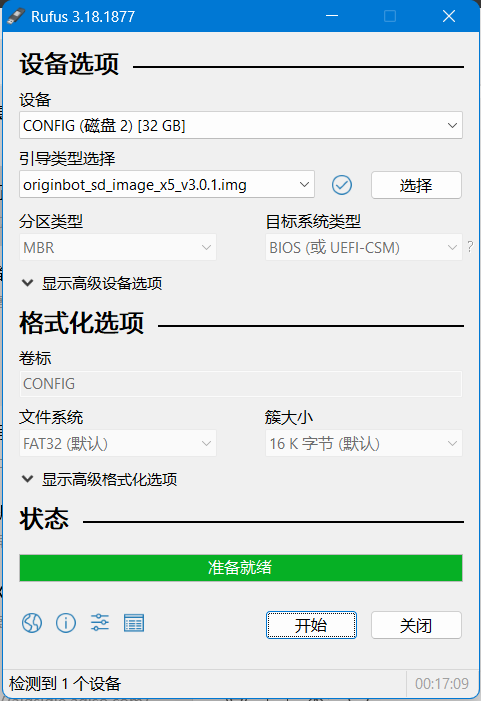
(5) The progress bar shows the current flashing progress. When flashing is complete, you can exit the software.
Start OriginCar
(1) Confirm that the robot kit has been installed correctly and that the corresponding system version has been installed successfully, then insert the SD card and turn on the power;
(2) Use the Ethernet cable in the kit to connect to the Ethernet port of the RDK X5 on the robot;
Attention
The RDK X5 wired network uses a static IP configuration by default; the initial IP address is 192.168.127.10.
(3) Connect the other end of the Ethernet cable to the Ethernet port of the PC, and first configure the properties of your own computer:


Use an SSH tool to connect to the robot: The username and password are both root.
Start the MoboXterm software, click Session in the upper left corner, and then click the SSH connection:

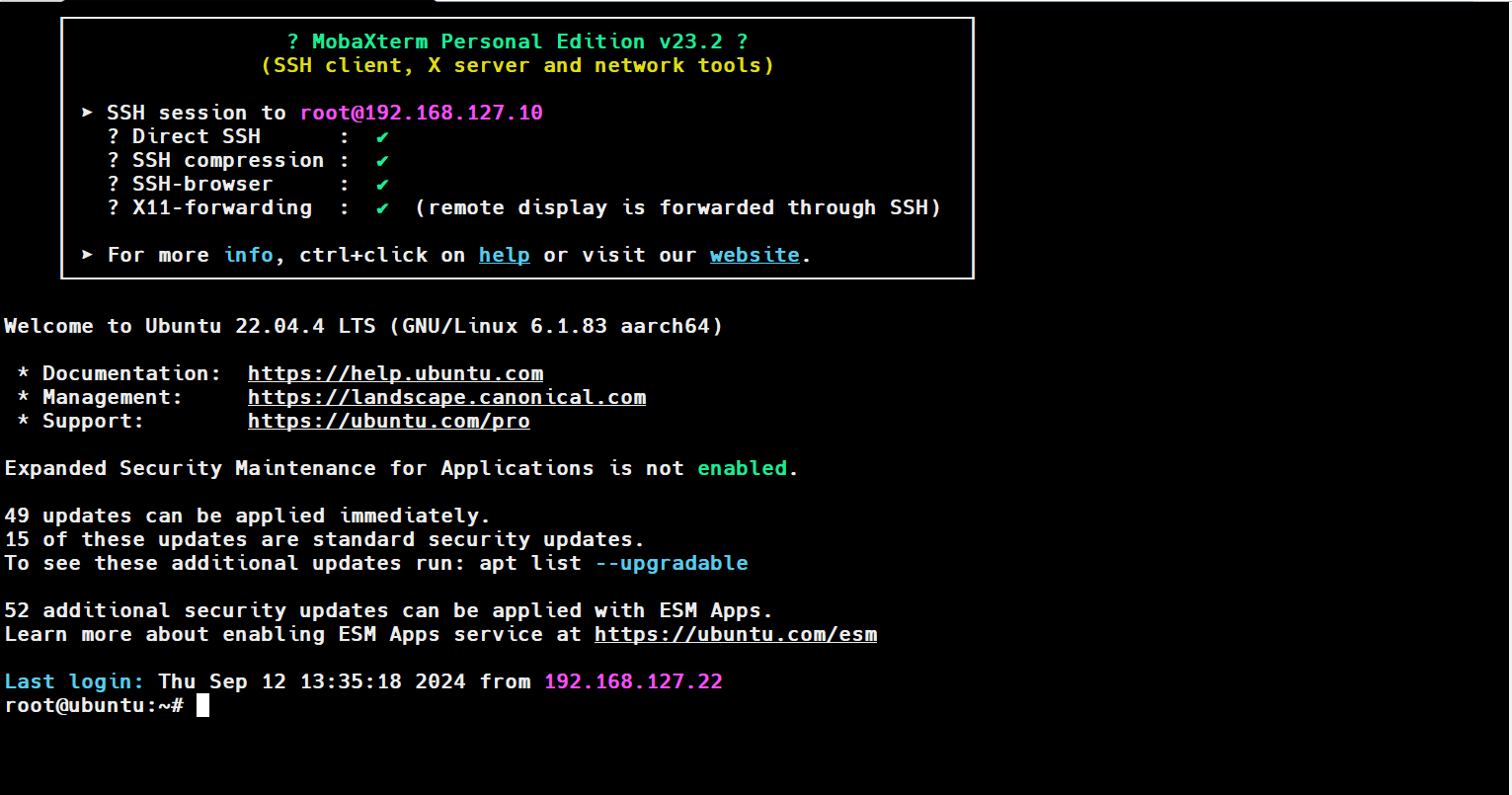
(4) In the MoboXterm software, you can see a login prompt. Enter the username and password, both of which are root: The password is not displayed by default
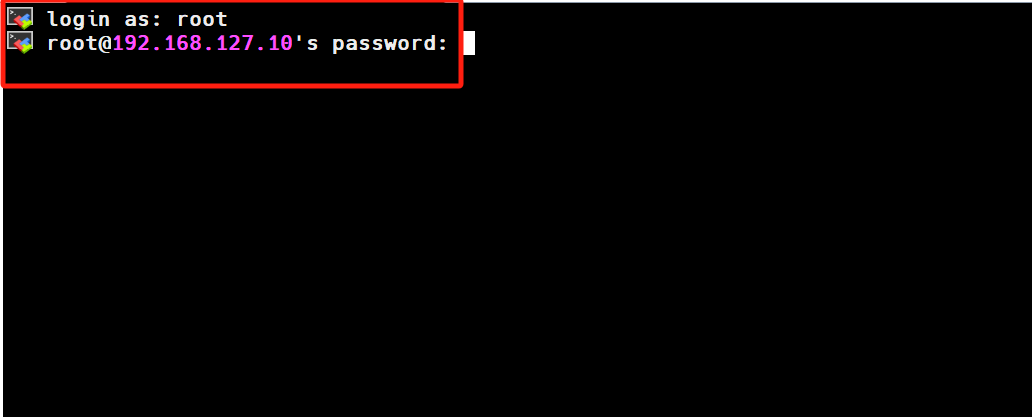
(5) You have now entered the robot's system:
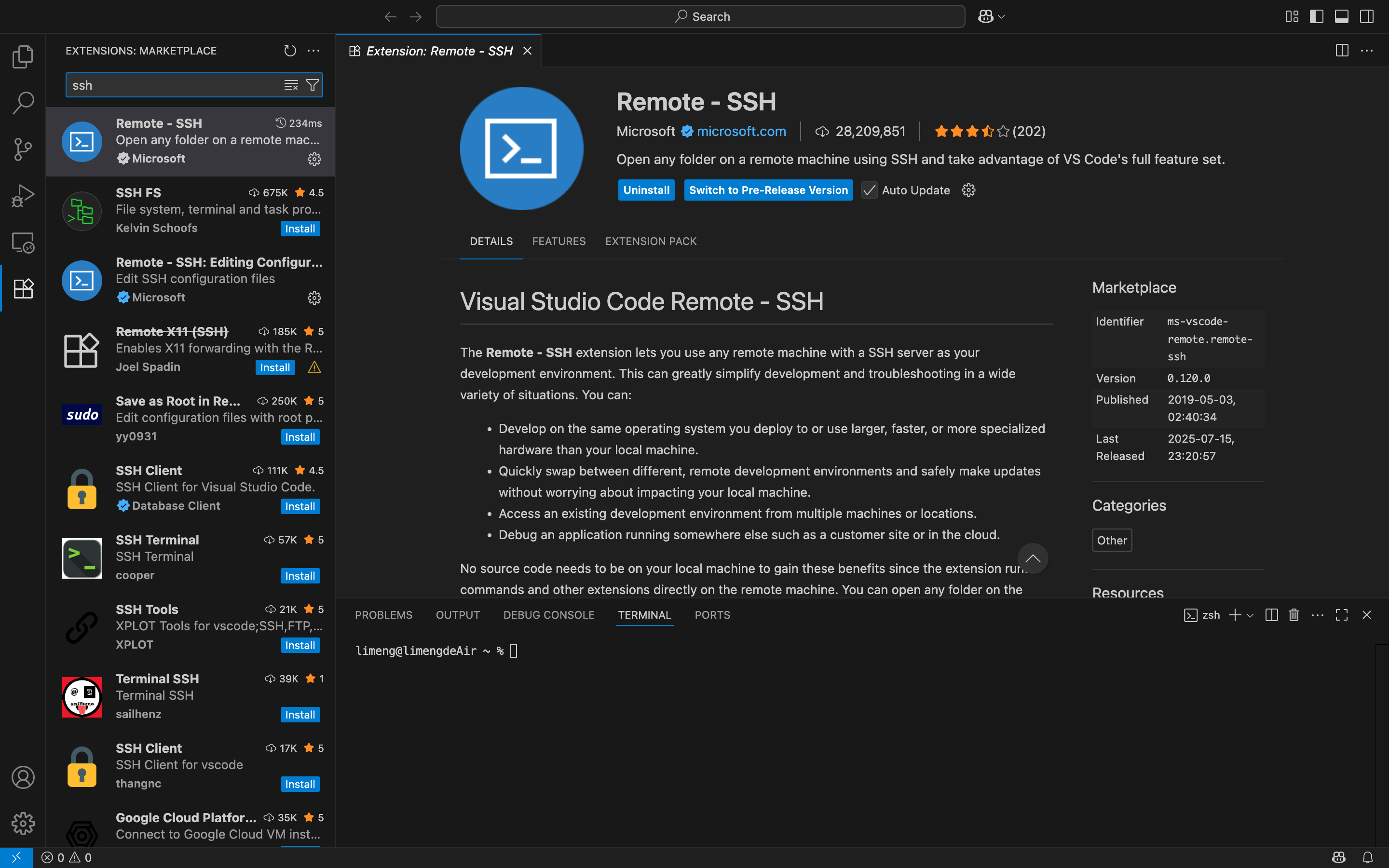
Start VSCode and install the Remote - SSH extension
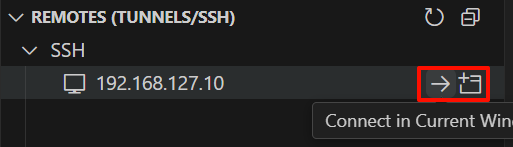
 Click the Remote Explorer icon on the left, then create an SSH connection

 Enter the password root
 You have now entered the robot's system; you can open a terminal to check it
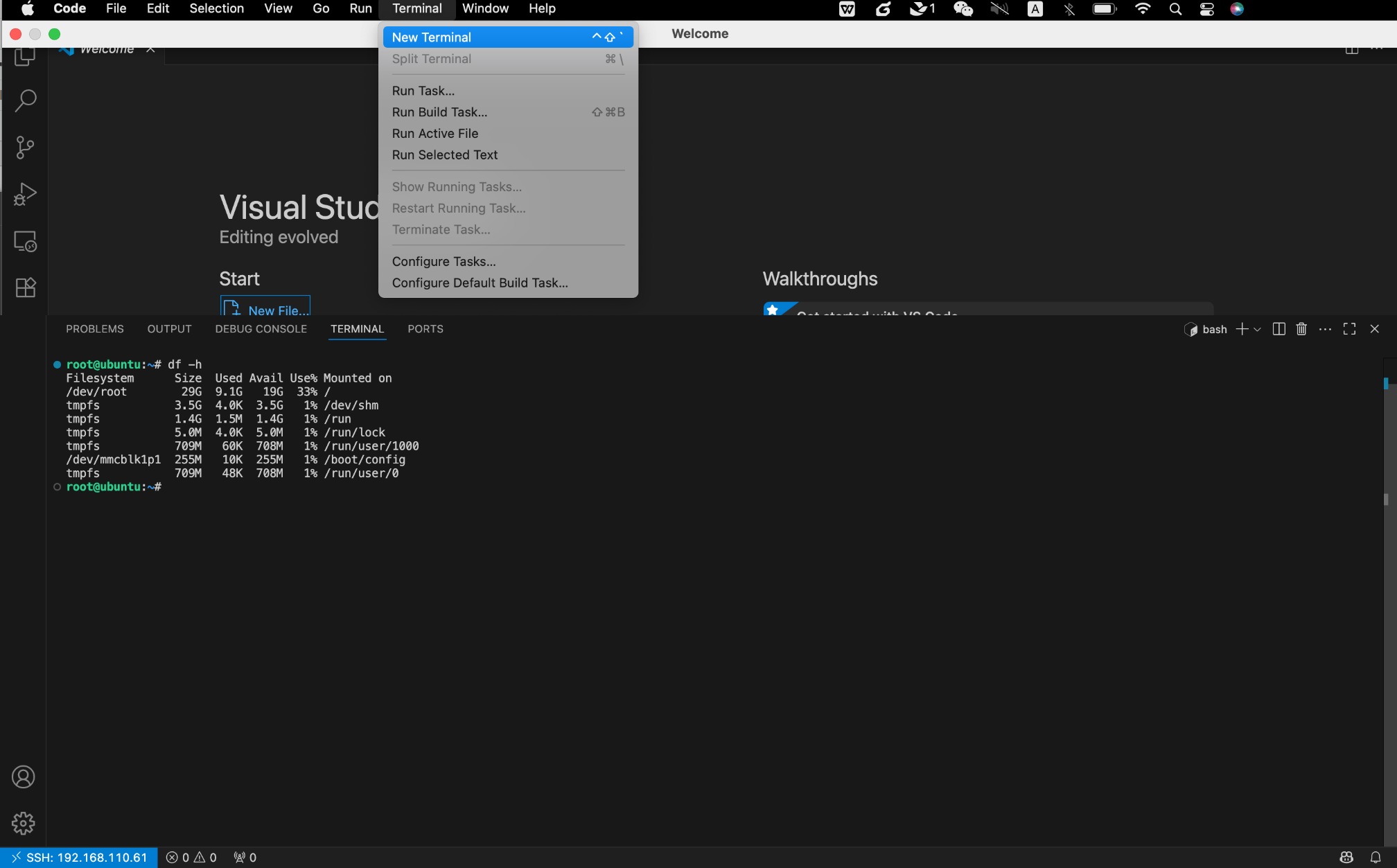
Warning
OriginCar functions run under the root user by default. During subsequent development and use, please operate as the root user.
You can switch to the root user with the su root command.
Expand the SD Card Storage
Introduction to Wireless Wi-Fi Connection
After the image installation is complete, start the system and refer to the following link to complete the wireless network configuration:
sudo nmcli device wifi rescan        # Scan for Wi-Fi networks
sudo nmcli device wifi list          # List the Wi-Fi networks found
sudo wifi_connect "SSID" "PASSWD"    # Connect to the specified Wi-Fi network
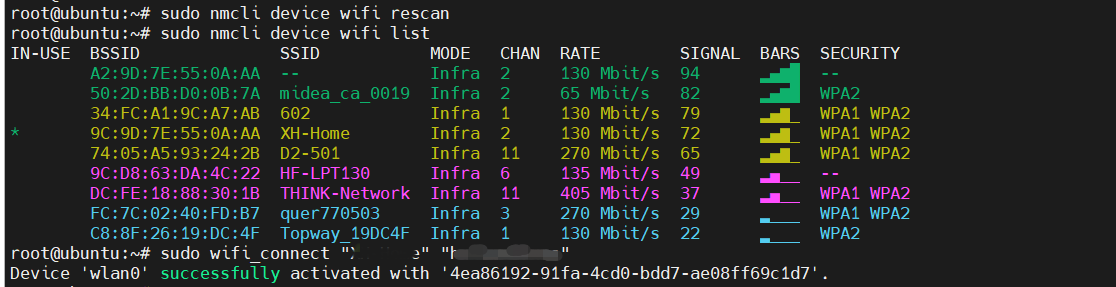
When the terminal returns the message "successfully activated", the Wi-Fi connection is successful. We can ping a website to check the connection. If the ping succeeds, the network is connected successfully, and you can now connect to the Internet, which makes it easier to download and update software later.

SSH Remote Login
Once the network configuration is complete, you are no longer restricted by cables; you can log in to the robot remotely over the wireless network via SSH for development.

Info
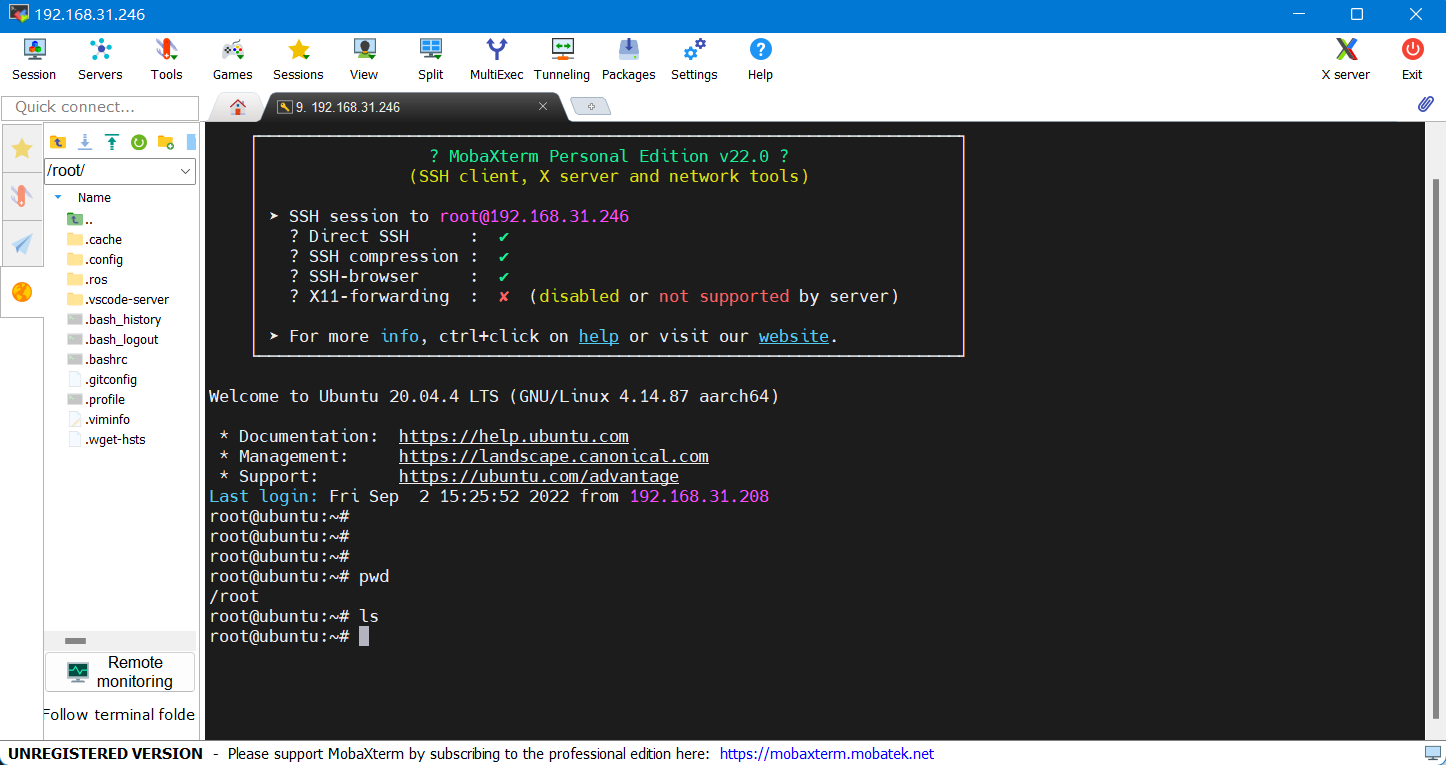
Here, enter the corresponding IP address according to whether you are using a wired or a wireless network. You can query the IP address with the ifconfig command; eth0 corresponds to the wired network adapter and wlan0 corresponds to the wireless network adapter.
Enter the username and password, root/root, to log in successfully:
Info
-
If you are in an Ubuntu environment on the PC, you can also use the following command in the terminal to log in remotely over SSH (note that the IP address must be changed to the actual address): ssh root@192.168.31.246
-
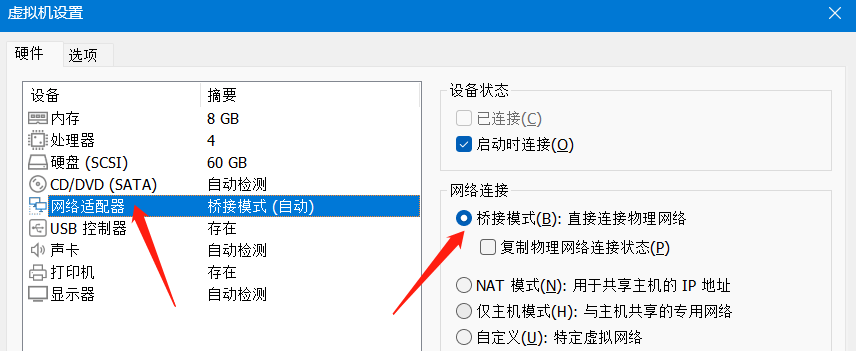
If you are using a virtual machine, set the network to bridged mode
Serial Port Connection
In addition to the most commonly used wired and wireless connections, serial connections are also very common. You can use the serial port to observe the LOG when the robot starts up and to debug programs, The serial port connection for the RDK X5 version is shown below:
Connect using MicroUSB, as shown below:
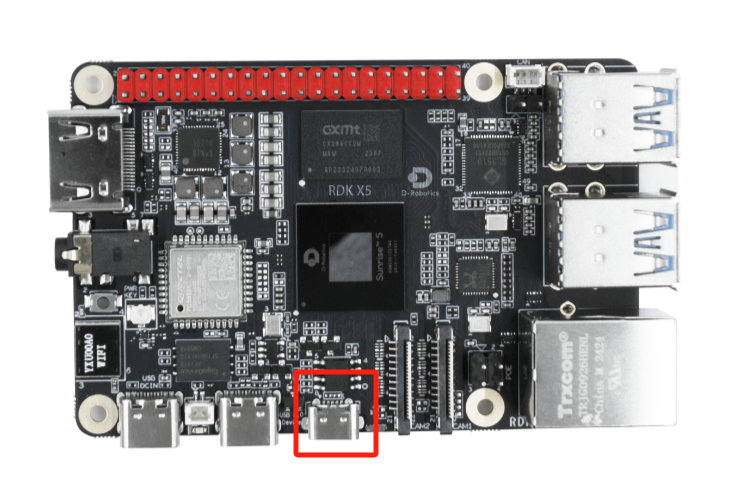
After connecting, you can start the MoboXterm software to connect; configure it as shown below:
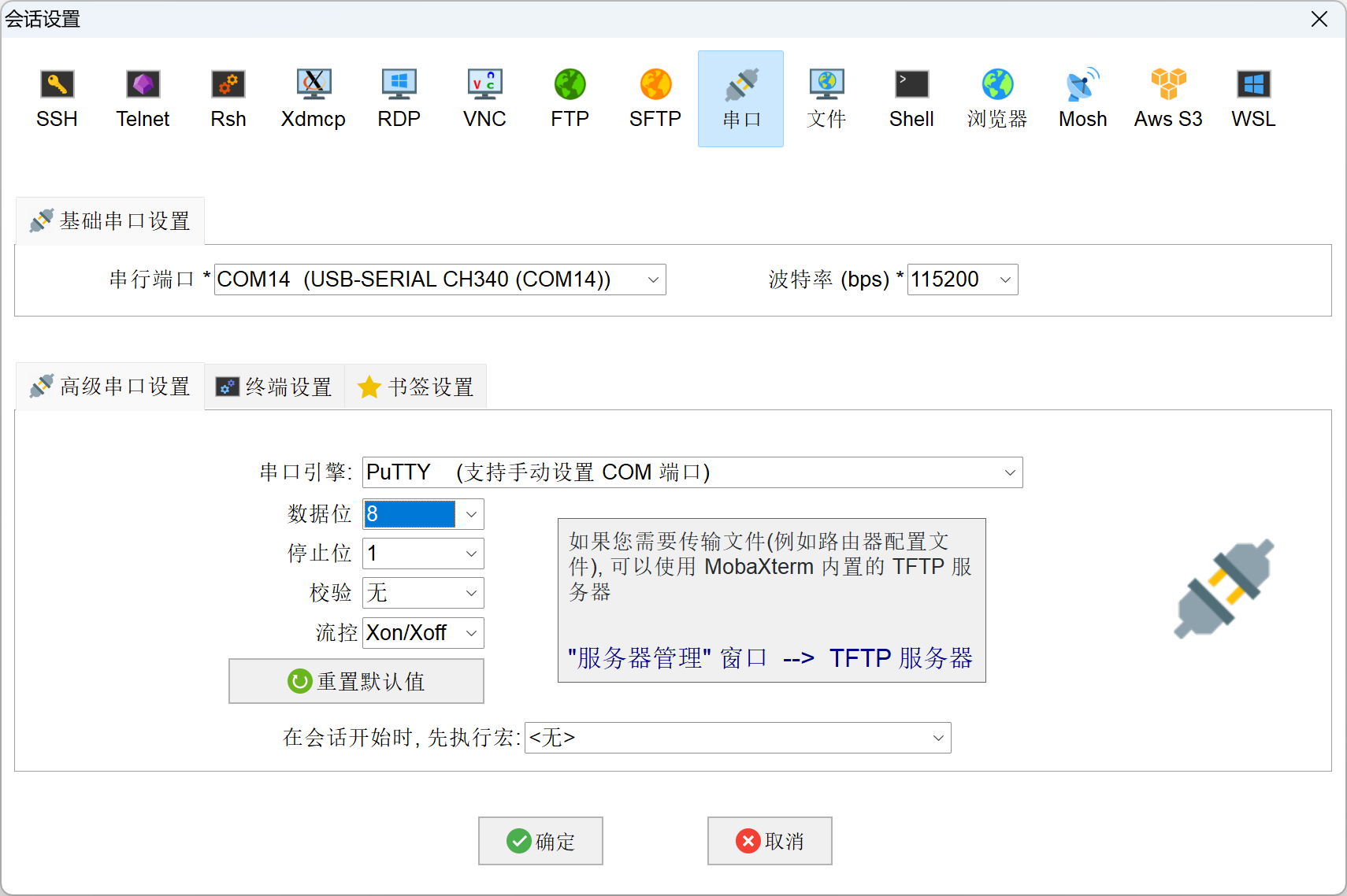
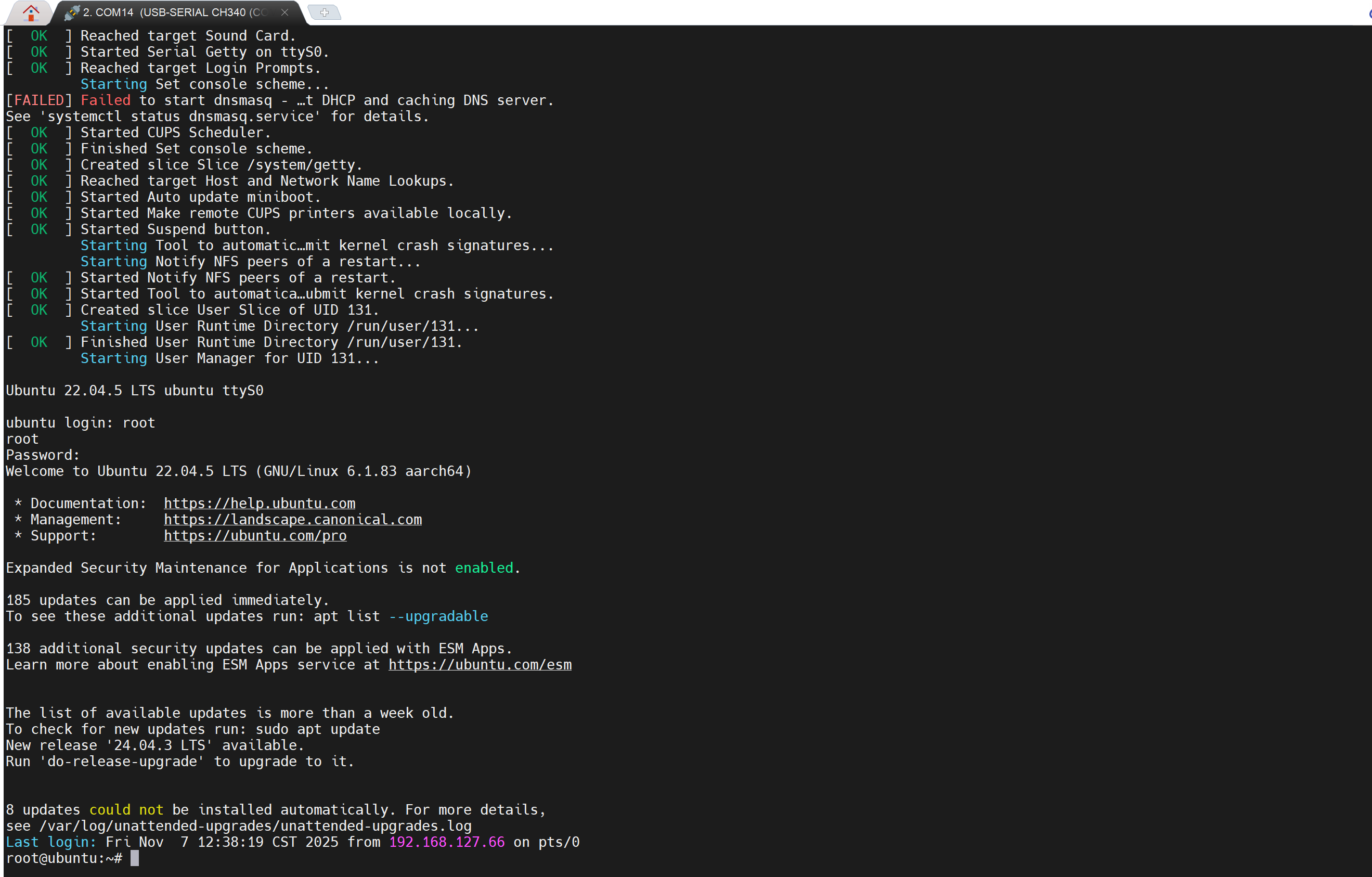
After the settings succeed, click OK to enter the system interface. If the device is already powered on, no LOG information is displayed; if you connect the cable and then power on the device, the boot LOG information appears. After entering the account and password, you can access the operation interface:
Warning
OriginCar functions and programs run under the root user by default, and all subsequent operations must be performed as the root user.
